How Webhooks Enable TradingView to MT5 Integration
How Webhooks Enable TradingView to MT5 Integration
Webhooks are a fast and reliable way to link TradingView alerts to MetaTrader 5 (MT5), automating trade execution in under 300 milliseconds. Here’s how it works: TradingView sends trade instructions (like buy/sell actions, lot sizes, and price levels) via an HTTP POST request to a bridge service. The bridge translates this data into commands MT5 can execute through an Expert Advisor (EA). This setup eliminates manual errors, reduces slippage, and ensures 24/7 trading.
Key Points:
- Speed: Trades are executed in milliseconds, reducing delays.
- Accuracy: Removes manual input errors like typos or hesitation.
- Automation: Keeps strategies active even when you're offline.
- Requirements: Paid TradingView subscription, MT5 terminal, and a bridge service like PineConnector or Traidies.
The integration process involves setting up an EA on MT5, configuring webhook URLs, and formatting TradingView alerts in JSON. Platforms like PineConnector and Traidies simplify this by providing ready-made tools and secure connections for seamless trade execution.
How to Connect a TradingView to MT5 Bridge | Auto Execute Alerts in Forex & NSE | | Code With Pulkit
sbb-itb-3b27815
How Webhooks Connect TradingView to MT5
TradingView to MT5 Webhook Signal Flow Process
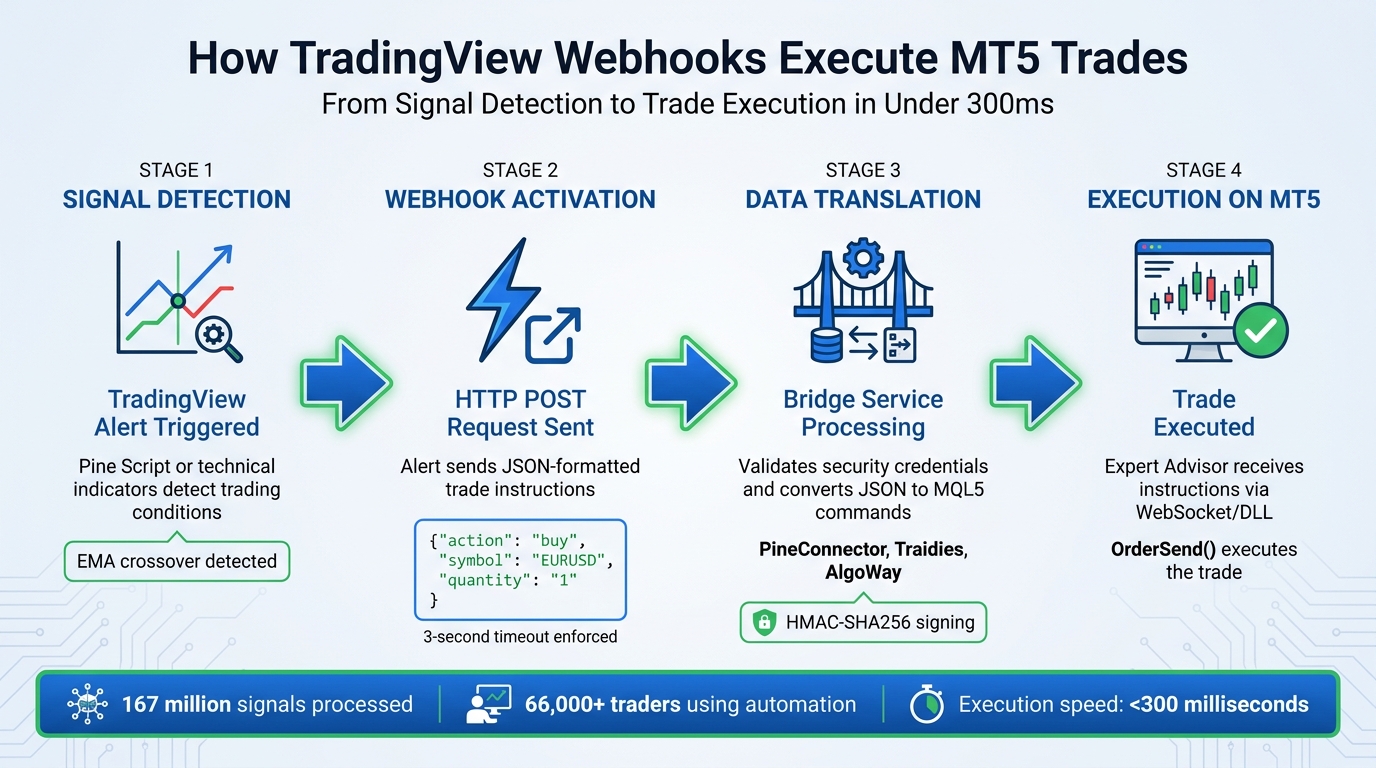
Webhooks act as the bridge between TradingView alerts and MT5 by transmitting trade details in JSON format to a service that translates them into executable commands. Here’s how it works: when your TradingView strategy detects a trading signal - like an EMA crossover - it triggers an alert. That alert activates a webhook, which sends an HTTP POST request to a bridge service.
Since MT5 isn’t built to handle incoming HTTP requests directly, the bridge service steps in as a translator. It takes the alert from TradingView’s cloud and converts it into instructions that your local MT5 terminal can understand. For example, PineConnector has facilitated over 167 million signals for more than 66,000 traders by processing JSON data, validating security credentials, and routing the commands to the correct trading account.
Let’s break down how this integration works step by step.
Understanding the Signal Flow
The process of turning a TradingView alert into an executed trade on MT5 happens in four main stages:
- Signal Detection: TradingView monitors your charts and triggers an alert based on conditions defined in Pine Script or technical indicators.
- Webhook Activation: The alert sends an HTTP POST request with JSON-formatted trade instructions to the bridge service.
- Data Translation: The bridge service receives the JSON data, validates it, and translates it into commands that MT5 can process.
- Execution on MT5: An Expert Advisor (EA) installed on MT5 receives the translated instructions - often via WebSocket or DLL - and executes the trade using the
OrderSend()function.
TradingView enforces a strict three-second timeout. If the remote server takes longer than three seconds to process the webhook request, TradingView cancels the alert to avoid executing trades based on outdated market conditions.
This flow highlights the essential role of the bridge service, which we’ll explore further below.
Role of Bridge Services
Bridge services are the linchpin in connecting TradingView alerts to MT5. They address MT5’s limitation of not being able to receive direct webhook connections by maintaining a persistent connection to your MT5 terminal. This is achieved through an EA that listens for incoming signals. When a webhook is triggered, the bridge service validates the security credentials included in the JSON payload to ensure only authorized trades are processed. It then converts the JSON data - such as {"action": "buy", "symbol": "EURUSD", "quantity": "1"} - into MQL5 commands that your broker’s server can execute.
Many modern bridge platforms go beyond basic functionality. For instance, they can handle multiple trading strategies at once by assigning unique “Magic Numbers” to differentiate trades from various TradingView alerts. Services like PineConnector, which starts at around $29.90 per month, also include advanced security features like HMAC-SHA256 signing to authenticate each signal. This added layer of security ensures that your trading remains protected while the bridge service transforms simple HTTP messages into fully executed market orders - no custom coding required.
For a simpler setup, platforms like Traidies offer an easy-to-use interface that streamlines webhook integration, making it easier than ever to automate your trading strategies.
Requirements for Setting Up Webhook Integration
Before diving into the integration process, make sure your TradingView, MT5, and bridge service environments are properly set up. Since the integration depends on specific tools and configurations, it’s important to have everything in place beforehand.
TradingView and MT5 Essentials
First, you’ll need a paid TradingView subscription - either Pro, Pro+, or Premium. The free Basic plan doesn’t support webhooks, so upgrading is essential. Also, ensure two-factor authentication is enabled for added security. TradingView states: "For your data protection, webhook alerts are only allowed when 2-factor authentication is enabled".
On the MT5 side, the terminal must be running on Windows (or a Windows VPS). Additionally, make sure VC++ v14 is installed, as many bridge Expert Advisors rely on DLL files that require this runtime.
Bridge Platform Setup
To connect TradingView webhooks to MT5, you’ll need a third-party bridge platform, such as TradingView Link, AlgoWay, or PineTrader. These services typically charge $15 to $30 per month. After registering, you’ll receive a unique Webhook URL and an ID (or UUID). You’ll also need to download the Expert Advisor (EA) provided by the service and place it in your MT5 MQL5/Experts folder.
Some platforms may require additional setup. For example:
- DLL files should go into the
MQL5/Librariesfolder. - Include files should be added to the
MQL5/Includefolder.
Most bridge services also provide a secret token, which you’ll need to include in your TradingView alert messages to verify each signal.
MT5 Configuration Permissions
Once the bridge platform is ready, adjust your MT5 settings for secure communication. Here’s what to do:
- Enable algorithmic trading and DLL imports by navigating to Tools > Options > Expert Advisors.
- Add the bridge service’s domain (e.g.,
https://tradingviewlink.comorhttps://algoway.trade) to the "Allow WebRequest for listed URL" section. This step ensures MT5 can communicate with the bridge server. - Turn on the Algo Trading button on MT5’s main toolbar (it should turn green). When attaching the EA to a chart, make sure the "Allow Algo Trading" option is checked in the EA’s properties.
If your MT5 terminal is behind a firewall, you’ll need to allowlist TradingView’s IP addresses:
- 52.89.214.238
- 34.212.75.30
- 54.218.53.128
- 52.32.178.7
Also, confirm that ports 80 or 443 are open, as TradingView webhooks only work with these ports.
With these requirements met, you’re all set to move on to the integration steps.
Step-by-Step Guide to Webhook Integration
Setting up webhook integration involves three primary steps: installing the Expert Advisor, obtaining your webhook URL, and configuring TradingView alerts. Each step builds upon the previous one, so be sure to follow them in sequence.
Step 1: Install and Configure MT5 Expert Advisor
If you're using Traidies (https://traidies.com), you can download the Expert Advisor (EA) directly from your Traidies dashboard.
To begin, download the EA from your bridge service's dashboard. Many platforms provide an automatic installer, but if you prefer a manual setup, you’ll need to place the .ex5 file in the MQL5\Experts folder, any .mqh files in MQL5\Include, and .dll files in MQL5\Libraries.
Before launching the EA, ensure you’ve installed VC++ v14, as WebSocket DLLs often require this runtime to function. Once ready, open MT5 and navigate to Tools > Options > Expert Advisors. Enable both "Allow algorithmic trading" and "Allow DLL imports".
To activate the EA, drag it from the Navigator panel onto any chart. Right-click the "Market Watch" section and select "Show All" to give the EA access to all available trading pairs. When the EA properties window opens, enter your provided Webhook UUID, API Key, or License ID in the "Inputs" tab. Make sure "Allow Algo Trading" is checked before you proceed.
"WebHooks allow MetaTrader to send alerts or data to an external URL when specific conditions are met. Unlike email or SMS notifications, WebHooks are instant, lightweight, and programmable." - Thomas Vasilyev, Associate Writer & EA Developer, New York City Servers
If trades aren’t executing after setup, check the Experts and Journal tabs at the bottom of MT5 for error messages, such as Error 4752 (trading not allowed) or DLL loading issues. Always test the setup on a demo account first to ensure JSON payloads are parsed correctly before moving to a live account.
Once the EA is up and running, you’re ready to generate your unique webhook URL.
Step 2: Generate and Obtain Webhook URL
After configuring the EA, log in to your bridge platform’s dashboard to generate your dedicated webhook URL. Use the credentials from Step 1 - your MT5 login number, trading password, and the exact broker server name. The platform will create a unique Webhook URL or UUID tailored to your MT5 instance.
"The webhook URL is a direct line to your trading account. If someone else gets it, they could potentially send malicious trade signals." - Sofia Petrov, Quantitative Specialist, FXNX
Copy the webhook URL and keep it secure. You can test it using tools like Webhook.site to inspect the data payload before linking it to your MT5 EA.
Step 3: Create and Configure TradingView Alerts
In TradingView, create a new alert by clicking the alarm clock icon or by right-clicking on your chart. Set your trigger conditions as needed, then navigate to the "Actions" tab and paste your webhook URL into the "Webhook URL" field.
In the "Message" box, format your trade instructions according to your bridge service’s specifications. Most platforms require JSON formatting, such as:
MySecret123
long
q=0.1
tp=300
sl=150
The first line includes your webhook password, followed by the action (long, short, or flat), trade quantity, take profit, and stop loss. To make alerts dynamic, you can use TradingView placeholders like {{ticker}} for the symbol or {{strategy.order.action}} for buy/sell instructions.
"For your data protection, webhook alerts are only allowed when 2-factor authentication is enabled." - TradingView Support
After saving the alert, check the "Webhook status" column in your TradingView alert log to confirm successful delivery. Be sure the symbol name in your alert matches your MT5 broker’s naming convention exactly - for example, some brokers use "BTCUSD", while others may use "BTCUSD.fx".
Common Webhook Message Formats and Examples
Once you've set up webhook integration, understanding the message formats becomes essential for creating accurate TradingView alerts. Webhooks typically use two formats: plain text and JSON. For JSON alerts, TradingView automatically assigns the Content-Type: application/json header, allowing for more complex instructions. These formats dictate how you structure your trade commands.
TradingView Link relies on plain-text formatting. Here, you place your webhook password on the first line, followed by the trade instructions. For instance, to open a long position on EUR/USD with a 0.1 lot size, a 200-pip stop loss, and a 400-pip take profit, the format would look like this:
YourPassword
long EURUSD q=0.1 sl=200 tp=400
To close all positions for a symbol, you would use flat EURUSD.
PineConnector and AlgoWay utilize JSON for more dynamic trade execution. PineConnector allows both simple and advanced JSON messages. A basic example might look like this:
{ "ticker": "{{ticker}}", "side": "buy", "lots": 0.1 }
A more detailed example could include additional parameters:
{ "ticker": "{{ticker}}", "side": "{{strategy.order.action}}", "lots": "{{strategy.position_size}}", "sl_price": "{{strategy.order.price}}", "tp_price": "{{strategy.order.take_profit}}", "comment": "AlphaTrend_{{interval}}" }
AlgoWay, on the other hand, requires a platform_name field. An example format would be:
{ "platform_name": "metatrader5", "ticker": "{{ticker}}", "order_action": "{{strategy.order.action}}", "order_contracts": "{{strategy.order.contracts}}" }
"If the alert message is valid JSON, the request will include an 'application/json' content-type header." - TradingView Support
To avoid errors, validate your JSON using tools like jsonlint.com. Issues like missing commas or unescaped quotes can result in "Invalid JSON" errors, halting trade execution.
Webhook Message Formatting Table
| Bridge Service | Format Type | Opening Action | Closing Action | Essential Parameters |
|---|---|---|---|---|
| TradingView Link | Plain Text | long, short |
flat |
q (quantity), sl, tp, m (magic number) |
| PineConnector | JSON | buy, sell |
close |
ticker, side, lots, sl_price, tp_price |
| AlgoWay | JSON | order_action (buy/sell) |
N/A | platform_name, ticker, order_contracts |
| Social Trade Hub | JSON | buy, sell |
close, partial_close |
ticket, symbol, sl, tp, percent |
Troubleshooting Webhook Connection Issues
Once your webhook integration is set up, keeping it running smoothly is crucial for uninterrupted trading. Even if everything seems correctly configured, connection issues can still crop up. Start by checking the "Experts" tab in MT5. This tab provides details on WebSocket status, EA initialization logs, and specific errors like "DLL calls are not allowed" or missing dependencies. These logs can help pinpoint where things might be going wrong.
On the TradingView side, take a look at the "Webhook status" column in your Alert Log. This will show whether TradingView successfully sent the POST request. If you encounter Error 415, it points to a problem with your JSON structure - field names must be lowercase, and the message must conform to valid JSON formatting. As AlgoWay notes:
"Error 415 isn't a bug or a crash - it's a safeguard. AlgoWay refuses to trade on messages it can't read".
Identifying and Resolving Common Errors
To get things back on track, focus on addressing common configuration and network-related issues.
Configuration errors are a frequent culprit. Double-check that MT5’s Algo Trading is enabled and that the bridge service URL is correctly entered in MT5's settings. Without these, signals won’t go through.
DLL loading failures often happen because the required Microsoft Visual C++ Redistributable (VC++ v14) isn’t installed. If your expert advisor doesn’t load, download and install this runtime from Microsoft’s website to fix the issue.
Symbol mismatches can also cause problems. For instance, TradingView might send "BTCUSD", but your broker might use "BTCUSD.m" or "BTCUSDT." Check your bridge platform’s dashboard and adjust the symbol mapping settings as needed.
Network and timeout issues demand attention too. TradingView cancels requests that take longer than 3 seconds, so investigate any network congestion or VPS delays . If you’re using a firewall, make sure to allowlist TradingView’s IP addresses:
52.89.214.238, 34.212.75.30, 54.218.53.128, and 52.32.178.7. Also, keep in mind that webhooks only work on ports 80 and 443 - requests sent to other ports will be rejected automatically. Lastly, ensure two-factor authentication is enabled on your TradingView account, as it’s necessary for webhook alerts to function properly.
| Error Type | Common Cause | Recommended Fix |
|---|---|---|
| Error 415 | Invalid JSON or incorrect field names | Validate JSON syntax |
| DLL Error | Missing VC++ Runtime or DLL imports disabled | Install Microsoft Visual C++ Redistributable and enable DLL imports |
| 4xx Errors | Invalid endpoint, authentication error, or bad data format | Check your webhook URL and validate your JSON structure |
| 5xx Errors | Bridge server is down or overloaded | Contact your bridge service provider’s support |
| Timeout | Server took more than 3 seconds to respond | Check for network congestion or VPS performance issues |
| WebRequest Error | URL not in MT5's allowed list | Add your bridge URL to the MT5 WebRequest whitelist |
Conclusion
Webhooks have changed the game for traders by linking TradingView's charting tools with MetaTrader 5's execution engine. By automating trade instructions, webhooks eliminate the need for manual order entry, cut down on human errors, and allow strategies to run around the clock without constant supervision. This setup creates a smooth process: TradingView spots opportunities, webhooks send instructions in milliseconds, and MT5 executes trades with precision.
While the initial setup - installing an EA, configuring webhook URLs, and formatting JSON messages - might seem daunting, the benefits are well worth it. With execution times under 300 milliseconds, traders can react to market moves far faster than manual methods. Additionally, bridge services have made algorithmic trading accessible to a broader audience, with over 167 million signals processed for more than 66,000 traders. Automation is no longer just for institutional players.
For those looking to simplify things further, platforms like Traidies (https://traidies.com) take automation to the next level. Traidies enables you to describe strategies in plain language, automatically generates MQL5 code, and provides backtesting with historical data. This removes yet another layer of complexity from the automation process.
FAQs
How secure are webhook trade signals, and how do I prevent unauthorized orders?
Webhooks for trade signals can be kept secure by employing measures like HTTPS encryption, HMAC signature verification, and restricted access controls. To avoid unauthorized orders, it’s crucial to:
- Use secure endpoints through HTTPS to protect data in transit.
- Verify webhook signatures to ensure the data's integrity and authenticity.
- Limit API key permissions to minimize potential misuse.
These precautions help safeguard against threats like forgery or interception.
What happens if the webhook request times out or the bridge server is down?
If a webhook request doesn't receive a response within three seconds or if the bridge server is unavailable, the request will be canceled. This can lead to missed trade executions or alerts since the data won't reach its target. To minimize disruptions, make sure the server remains stable and responsive, especially during critical trading periods.
How do I ensure TradingView symbols match my MT5 broker’s symbol names?
To ensure that TradingView symbols align with your MT5 broker's naming conventions, start by confirming that the symbols are both visible and tradable in your MT5 Market Watch. It's crucial that TradingView alert messages or webhook payloads match the exact symbol names your broker uses. If there's a mismatch, you can resolve it by using symbol mapping or tweaking the settings in your webhook or Expert Advisor (EA) to ensure the names are correctly aligned.