Best Practices for MQL5 System Updates

Best Practices for MQL5 System Updates
Updating your MQL5 system is critical to avoid trading errors and ensure smooth performance. Skipping updates can lead to runtime issues, security vulnerabilities, and system inefficiencies. Here's how you can stay ahead:
- Review changelogs: Identify changes like inheritance behavior updates (e.g., Build 5260) that may impact your code.
- Back up data: Save your
/MQL5directory, including key folders like/Expertsand/Presets, to prevent data loss. - Test on demo accounts: Run updates in a controlled environment to catch errors before live deployment.
- Use version control: Implement Git for tracking changes, rolling back updates, and managing code branches.
- Deploy safely: Compile, debug, and phase updates to minimize risks during live trading.
- Validate post-update: Backtest, check event handlers, and monitor memory usage to ensure stability.
- Maintain regularly: Schedule system reviews, monitor broker constraints, and use AI tools like Traidies for streamlined updates.
Key takeaway: A structured update process protects your trading system from errors, ensures compatibility with new features, and optimizes performance. Follow these steps to keep your system reliable and efficient.
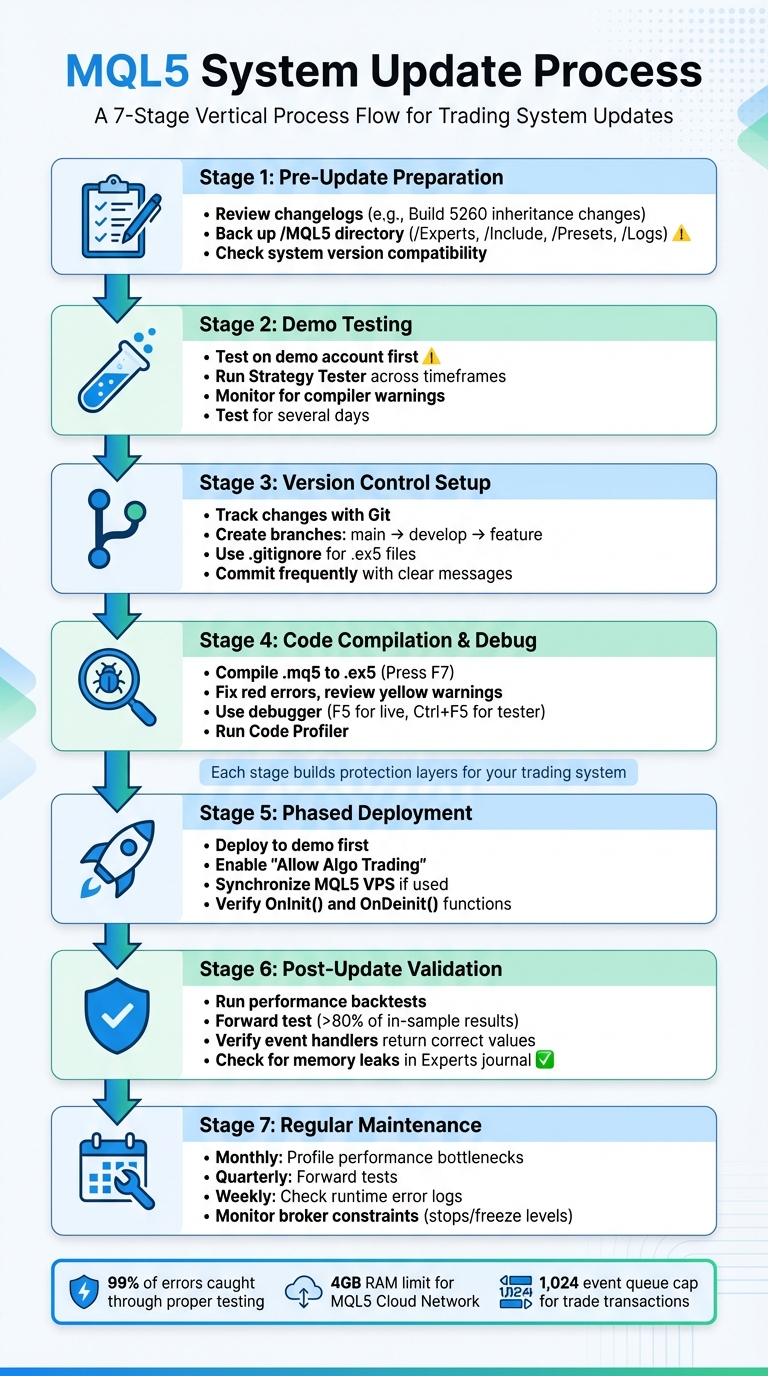
MQL5 System Update Workflow: 7-Step Process for Safe Deployment
Master MQL5 Programming (Complete All In One Guide)
sbb-itb-3b27815
Pre-Update Preparation Steps
When it comes to updating your MQL5 system, preparation is the key to avoiding unwanted surprises. Skipping the groundwork can lead to broken Expert Advisors (EAs), lost settings, or even hidden errors that could wreak havoc during live trading. Taking a few minutes to prepare can save hours of frustration and even prevent financial losses. Start by reviewing changelogs and system versions to identify potential impacts on your setup.
Check Changelogs and System Version
Begin by going through the MetaTrader 5 release notes and MQL5 changelogs. These resources highlight critical updates that might affect your code. For instance, in September 2025, MetaQuotes released Build 5260, which introduced a major change to inheritance behavior in MQL5. This update implemented "method hiding", where methods in derived classes now hide those in base classes if they share the same name, instead of overloading them. If your EAs depend on class hierarchies, this update could disrupt your existing functionality.
"Previously, if a derived class or structure defined a method with the same name as in the base class, overloading was performed... Now, methods with the same name in a derived class hide base class methods." - MetaQuotes
It's also important to note changes to the Strategy Tester. Recent updates now require a "pre-start history buffer" for D1 and lower timeframes, ensuring data is loaded from the beginning of the previous calendar year to improve calculation accuracy. This adjustment could shift the starting point of your backtests, which might alter your optimization results. Additionally, keep an eye out for new features like the @ matrix multiplication operator introduced in Build 5100, as well as fixes for significant issues such as triple swap calculation errors.
Once you're familiar with the recent changes, the next step is to safeguard your environment.
Back Up Your Data
Before proceeding with any update, create a backup of your entire /MQL5 directory. Pay special attention to key folders like:
/Experts(EA source code)/Include(header files)/Presets(.setfiles containing EA parameters)/Logs(performance logs inyyyymmdd.logformat)
You can access this directory by selecting File > Open Data Folder in your terminal. If you're in the middle of an optimization process, don't forget to back up the Tester/cache/ directory, which houses your .tst and .opt files. For an added layer of security, consider using the built-in MQL5 Storage service. This tool offers version control and allows you to roll back to earlier versions of your code if the update introduces issues.
Test Updates on Demo Accounts
Never skip testing on a demo account. This step is essential to avoid potential losses caused by code errors, logic changes, or compatibility problems. Set up a demo account that mirrors your live trading environment as closely as possible.
Run the updated EA in the Strategy Tester across different timeframes and market conditions. Pay close attention to new compiler warnings. For example, Build 5260 now issues warnings when a call resolves to a derived method instead of a hidden base method. If you encounter issues like "entry point not found" errors after an update, add terminal64.exe and metaeditor64.exe to your firewall's Advanced Threat Defense exception list. Let the EA run on the demo account for several days to catch any issues that might only surface under specific market conditions or after multiple trades.
Version Control Best Practices
Once your system is stable, it's time to implement a solid version control strategy to manage future updates effectively. Version control plays a critical role in maintaining system reliability during updates. The MQL5 ecosystem has transitioned from the older SVN-based MQL5 Storage to the more modern, Git-powered MQL5 Algo Forge, which offers traders a more efficient way to handle complex algorithmic systems. With Git, your entire project history is stored locally, enabling you to commit changes, review your code's progression, and roll back to earlier versions - even without an internet connection. This is especially useful when you're offline, experimenting, or working in remote locations.
Track Changes with Git
Git captures a detailed snapshot of your code with every modification. Each commit represents the state of your code at a specific moment, accompanied by a brief description of the changes. This makes it easy to pinpoint the exact update that introduced an issue and revert to a stable version if needed. The "Staging Area" feature is particularly helpful for organizing changes before committing them, such as separating minor parameter tweaks from updates to core trading logic.
"Algo Forge gives you freedom. You can work offline on a train, create experimental branches, save intermediate results, and later merge them into the main branch." - MQL5 Articles
To get the most out of Git, make frequent commits with clear, concise messages for each task or fix. Start each work session by running "Git Pull" to ensure you're working with the latest code. After completing your tasks, use "Git Commit" and "Push" to save your updates to the cloud. To keep your repository clean, configure a .gitignore file to exclude unnecessary files like compiled .ex5 files, logs, and standard MetaTrader library files.
Once your Git history is well-organized, you can focus on managing changes across different environments.
Create Separate Branches for Each Environment
Using Git's branching capabilities, you can isolate code changes to ensure stability across environments. A three-tier branching strategy works well: main for stable, production-ready code, develop for integration and testing, and feature branches for experimental or new changes. This setup allows you to test new indicators or filters in a controlled environment without risking disruptions to your main codebase.
When starting a new feature, create a branch from develop and work on it independently. After thorough testing, submit a Pull Request to merge it back into develop for further validation. Only when you're confident everything is functioning correctly should the changes be merged into main for live deployment. The MQL5 Algo Forge interface simplifies this process by providing visual tools for reviewing and merging changes. Once a feature branch has been merged successfully, delete it to maintain an organized repository and avoid clutter.
Add Comments to Document Changes
Clear and detailed comments are essential for reviewing and maintaining complex trading systems. To follow standard version control practices, document changes as you write the code rather than postponing it. Focus on explaining the reasoning behind your decisions and the logic of your code, rather than merely describing what each line does. If you fix an error, include a comment near the problematic line explaining why the fix was necessary.
Descriptive Git commit messages are equally important. They make it much easier to navigate your project's history and locate specific changes. The Git Log command in MetaEditor provides a timeline of changes, showing who made what updates and when. This is especially useful for identifying how certain modifications impacted your EA's performance or caused unexpected behavior during live trading. Thoughtful documentation and meaningful commit messages will save you time and effort when troubleshooting or optimizing your system.
Safe Deployment Procedures
Deploying updates safely is crucial to avoid errors and keep your systems running smoothly. By following these steps, you can ensure a seamless update process that builds on your preparation and version control efforts.
Compile and Debug Your Code
Start by compiling your source code (.mq5) into an executable file (.ex5) using F7 in MetaEditor. Pay close attention to the "Errors" tab - red icons indicate critical errors that must be resolved before compilation, while yellow icons signal warnings. Don’t overlook warnings, as they often highlight implicit type changes or runtime risks that could lead to system failures after deployment.
For debugging, use the debugger tools: press F5 to debug on live charts or Ctrl+F5 for the Strategy Tester. Set breakpoints with F9 and step through your code using F10 or F11 to inspect variables and logic. Always debug on a demo account to avoid risks in live environments. Before finalizing your update, run the Code Profiler (found in the Debug menu) to identify any CPU-intensive functions that could slow down live trading.
Deploy in Phases
A phased deployment minimizes risks. Start by testing updates on a demo account to confirm that system logic - such as daily profit limits, consecutive loss rules, and emergency stops - functions as intended. If you're updating products purchased from the MQL5 Market, click the "Update" button in the Market tab, restart your terminal, and reapply the product to your chart.
For live deployment, ensure "Allow Algo Trading" is enabled in the Common tab of the settings window. If you're using an MQL5 VPS, synchronize your environment by right-clicking the VPS in the Navigator and selecting "Synchronize environment" to push updated EAs and indicators to the server. Once the phased deployment confirms the system's stability, proceed to validate the update in live conditions.
Check Initialization and Cleanup Functions
After deploying updates, verify that your system initializes and shuts down correctly by focusing on key functions. The OnInit function is responsible for critical tasks like memory allocation, file handling, and creating indicator handles. Use int OnInit() to return error codes (e.g., INIT_FAILED or INIT_PARAMETERS_INCORRECT) and confirm that indicator handles are valid by checking against INVALID_HANDLE.
Equally important is the OnDeinit function, which ensures proper cleanup of resources. Without freeing memory, residual objects can degrade system performance. Use the reason parameter or _UninitReason variable to log why the program was stopped - whether due to user actions, re-compilation, or account changes. Proper cleanup prevents memory leaks and keeps your system running efficiently.
Post-Update Validation Checklist
Post-update validation is a must to ensure every part of the system - from performance to event management - works as intended. Once your update is deployed, this step confirms the system behaves as expected, catches issues early, and keeps your trading logic intact.
Run Performance Backtests
Start by backtesting the updated system using recent historical data to spot any logic errors. Use the Strategy Tester to simulate how your system performs with past data, which helps identify core functionality problems. Pair these backtests with forward tests on out-of-sample data; performance should stay above 80% of in-sample results. A significant drop in performance may indicate a regression caused by the update.
Enable "Random Delay" mode in the Strategy Tester to simulate real-world conditions like slippage and network latency. This stress-test can reveal if the update made your system overly sensitive to execution timing. If issues arise, revisit your order logic before proceeding with live deployment.
Once performance stability is confirmed, move on to validating event handling and variable initialization.
Verify Event Handlers and Variables
After performance checks, ensure event handlers and variables are functioning correctly. Start by verifying that the OnInit() function returns INIT_SUCCEEDED. If it returns INIT_FAILED or any non-zero value, the Expert Advisor (EA) will be forcibly removed from the chart. For indicators, confirm that OnCalculate() returns rates_total, ensuring proper tracking of handled bars and avoiding redundant recalculations.
Keep an eye on event queues to prevent overflow. Add Print(__FUNCTION__) in event handlers to confirm they trigger as expected. For trade transactions, note that the event queue is capped at 1,024 elements. If OnTick is still processing when a new tick arrives, the system will skip the new event.
Be cautious of "Array out of range" errors, which can occur if the number of records copied with CopyBuffer is smaller than the index accessed in your code. Always initialize global variables in OnInit to ensure a clean state after updates or parameter changes.
Check Chart Objects and Memory
Finalizing the update process involves verifying resource cleanup and monitoring memory usage to ensure long-term stability. Memory leaks can gradually affect performance. After running the updated system, review the "Experts" journal for messages about "undeleted dynamically created objects." These errors occur when objects created with the new operator aren’t explicitly deleted before the program unloads. Use IndicatorRelease() in the OnDeinit() handler to release indicator handles and free up resources.
Test graphical objects in the visual mode of the Strategy Tester, as non-visual mode returns zero values. Track memory usage with TERMINAL_MEMORY_AVAILABLE via TerminalInfoInteger() to compare available memory before and after function execution. This step helps identify memory leaks that might not cause immediate errors but can slow down your system over time.
Regular Maintenance Procedures
After a successful deployment, keeping your system in top shape requires consistent maintenance. Regular checks not only prevent minor issues from escalating but also ensure your trading logic adapts to shifting market conditions. This ongoing upkeep is essential to address performance and compatibility concerns before they become significant problems.
Schedule Periodic System Reviews
Set up a routine for reviewing your system. Monthly profiling can help you pinpoint performance bottlenecks, while quarterly forward tests ensure your system remains reliable across various market conditions. Addressing bottlenecks promptly keeps execution speeds optimal.
During these reviews, don't overlook broker-specific constraints like SYMBOL_TRADE_STOPS_LEVEL and SYMBOL_TRADE_FREEZE_LEVEL, as these parameters can change unexpectedly and disrupt order execution. It's also critical to monitor resource usage, especially if you're relying on the MQL5 Cloud Network. Ensure your system stays well below the 4GB RAM limit to avoid performance hiccups.
Weekly checks of runtime error logs are equally important. Look for critical issues such as "Array out of range", "Zero divide", and "Insufficient funds" errors. To prevent balance-related failures, implement automated margin checks with AccountInfoDouble(ACCOUNT_MARGIN_FREE) before executing any trades. Additionally, validate trade volumes against broker-imposed limits like SYMBOL_VOLUME_MIN, SYMBOL_VOLUME_MAX, and SYMBOL_VOLUME_STEP using SymbolInfoDouble to ensure compliance.
Keep Detailed Update Logs
Replace standard logging methods with a custom system that categorizes messages into levels like DEBUG, INFO, WARN, ERROR, and FATAL.
"Logging levels are applied to separate messages with various criticality from each other and to have the ability to customize the criticality degree of displayed messages." - Sergey Eryomin, MQL5 Developer
Maintain all updates in CSV format with timestamps, and record GetLastError() outputs when functions fail. Configure automatic log rotation at 1MB to prevent files from growing too large. Dedicate time on weekends to clean up unnecessary log files and keep your terminal running smoothly.
Use AI-Powered Development Tools
Leverage AI-powered tools to streamline maintenance tasks and system updates. For example, Traidies (https://traidies.com) allows you to describe strategy adjustments in plain language, automatically generating the corresponding MQL5 code. This saves time on manual coding and minimizes syntax errors.
The platform also includes automated backtesting, which runs tests against historical data immediately after code generation. This feature speeds up the validation process compared to traditional manual testing. If you're refining strategies - like incorporating new indicators such as RSI or Bollinger Bands - AI tools can suggest optimized combinations and guide implementation. These tools not only boost efficiency but also reduce the likelihood of coding mistakes.
Conclusion
The checklist you've followed ensures that every step of your update process is covered. Precision in updates is key - after all, even a minor mistake in your Expert Advisor's logic can lead to losses in your trading account. By testing across various instruments, timeframes, and initial deposit values, you can catch nearly 99% of potential errors before they ever impact your live account.
This methodical approach - spanning data backups, demo testing, and thorough backtesting - provides multiple layers of protection at each stage of the update process. Compiling your code helps spot syntax errors, phased deployment minimizes risk, and backtesting in "Every tick" mode ensures your logic stands up to real market scenarios.
For those looking to simplify this workflow, platforms like Traidies offer a smart solution. Instead of manually coding every adjustment, you can describe your changes in plain language and let AI generate MQL5 code for you. With automated backtesting built into the platform, Traidies not only reduces coding errors but also cuts down on testing time. Combining AI-driven tools with a structured update process strengthens the reliability of your trading system.
FAQs
What should I back up before updating MetaTrader 5 or MQL5?
Before making any updates to MetaTrader 5 or MQL5, it's crucial to back up your important files and settings. Start by copying the entire "Profiles" and "MQL5" folders from the platform's data directory. By doing this, you safeguard your custom configurations, trading strategies, indicators, and Expert Advisors. If something goes wrong during the update, you’ll be able to restore everything without hassle.
How can I tell if a new MQL5 build will break my EA?
To ensure a new MQL5 build doesn't disrupt your Expert Advisor (EA), start by carefully reviewing the release notes. Look for updates such as stricter inheritance rules or features that have been removed. These changes could directly impact your EA's functionality.
Before deploying your EA in a live trading environment, always test it on a demo account. This step helps you catch potential errors or unexpected behavior caused by the update. Additionally, pay close attention to any compiler warnings. These warnings often highlight areas where your code might not align with the latest requirements, giving you a chance to make necessary adjustments before running into issues.
What post-update checks catch the most common runtime errors?
When updates are made, runtime errors often pop up, typically tied to the program environment, error handling, or debugging. To tackle these issues, start by double-checking the program's environment to ensure everything is set up correctly. Next, focus on implementing effective error handling to manage unexpected situations gracefully. Finally, make use of error logging and debugging tools to pinpoint and resolve problems.
These steps can help uncover common issues in MQL5 systems, such as incorrect trading operations, resource constraints, or unexpected program crashes. Addressing these promptly ensures smoother functionality and minimizes disruptions.