Debugging Low-Code Trading Bots in MQL5

Debugging Low-Code Trading Bots in MQL5
Debugging MQL5 trading bots is essential to ensure they function correctly and avoid costly mistakes. Even with low-code tools, errors like syntax issues, runtime crashes, or flawed logic can disrupt your bot's performance. Here's what you need to know:
-
Three Common Errors:
- Syntax Errors: Prevent the bot from running (e.g., missing semicolons).
- Runtime Errors: Occur during execution (e.g., dividing by zero, invalid array access).
- Logic Errors: The bot runs but behaves incorrectly (e.g., wrong trade decisions).
-
Debugging Tools:
Use MetaTrader 5's debugger, logging functions (Print()), and backtesting features to identify and fix these issues. Breakpoints, step-by-step execution, and variable tracking help pinpoint errors. -
Backtesting:
Test your bot with historical data to verify strategy performance. Metrics like profit factor and drawdown reveal potential flaws. Always use high-quality data and test across multiple scenarios. -
Logs and Error Codes:
Analyze logs in the Experts and Journal tabs for error messages. UseGetLastError()to interpret numeric codes and identify issues like insufficient funds or invalid lot sizes.
Debugging isn't just about fixing crashes - it improves performance and reduces risks. Tools like Traidies simplify the process with automated code generation and backtesting, saving you time and effort.
How to debug in MQL5
sbb-itb-3b27815
Common Errors in MQL5 Low-Code Trading Bots
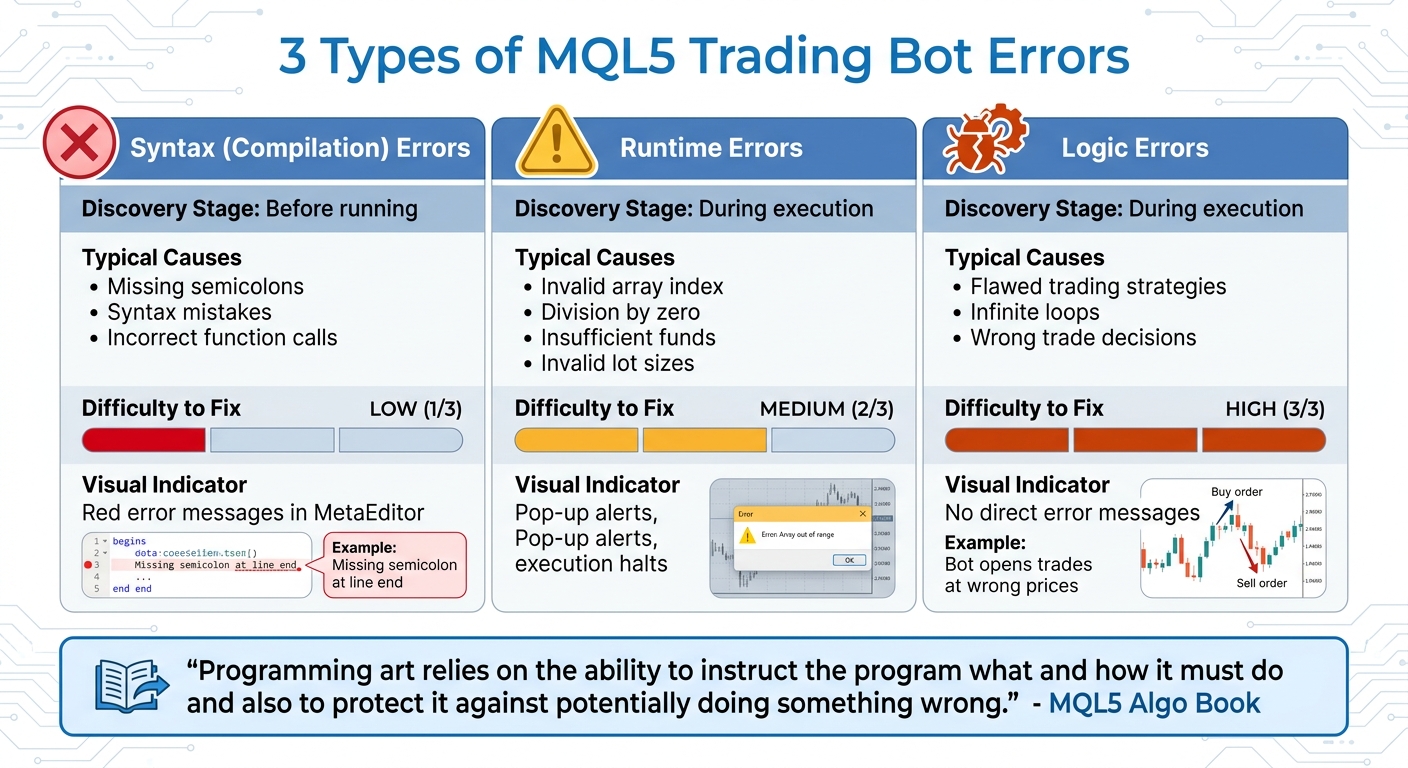
Three Types of MQL5 Trading Bot Errors: Syntax, Runtime, and Logic
Even when using templates or low-code tools, MQL5 trading bots can run into issues. Spotting these problems early is key to building reliable bots. Errors generally fall into three categories: syntax (compilation), runtime, and logic errors. Let’s break down how to identify and handle each type.
Syntax errors (Compilation errors) are flagged by the compiler before your bot even starts running. In MetaEditor, these appear as red messages in the "Errors" tab, often with line numbers for easy reference. Runtime errors, on the other hand, pop up while your bot is running. These occur under specific conditions, like dividing by zero or accessing an invalid array index. Critical runtime errors - such as "Array out of range" or "Zero divide" - bring your bot to an immediate halt with a pop-up alert. Finally, logic errors can be the trickiest. Your bot compiles and runs but behaves incorrectly, making flawed trading decisions or getting stuck in infinite loops. Unlike syntax or runtime errors, logic errors provide no direct hints from the terminal.
3 Types of Errors: Syntax, Logic, and Runtime
Here’s a quick comparison of the three error types:
| Error Category | Discovery Stage | Typical Cause | Difficulty to Fix |
|---|---|---|---|
| Syntax (Compilation) | Before running | Missing semicolons, syntax mistakes | Low |
| Runtime | During execution | Invalid array index, division by zero | Medium |
| Logic | During execution | Flawed strategies, infinite loops | High |
Trading-specific errors fall under runtime issues. Examples include insufficient funds (not enough margin to open a position), invalid lot sizes (not matching broker requirements), and stops level violations (TakeProfit or StopLoss set too close to the current price). Connectivity problems, such as losing your internet connection or being unable to reach the broker’s server, can also cause runtime failures.
"Programming art relies on the ability to instruct the program what and how it must do and also to protect it against potentially doing something wrong."
- MQL5 Algo Book
How to Spot Error Symptoms
Errors usually show clear signs, but recognizing them is the first step. Here’s what to look for:
- Failed compilation: Your bot won’t start, and MetaEditor displays red error icons in the "Errors" tab.
- Execution aborts: The bot halts mid-trade with messages like "Array out of range" or "Zero divide".
- Silent failures: The bot appears active (green icon) but performs no trades. This could mean the "Autotrading" button is off or "Allow live trading" isn’t enabled in the EA properties.
- Incorrect trade behavior: Logic errors might cause the bot to open trades at the wrong price, use incorrect lot sizes, or miss signals entirely.
Don’t ignore compiler warnings (yellow messages). While the code might still compile, these warnings often highlight deeper issues. For example, using a single equals sign (=) for assignment instead of a double equals (==) for comparison can trigger a warning and lead to unpredictable results.
"Warnings should not be ignored as well... a program will be created but there is no guarantee that it will work as you planned."
- Mykola Demko, MQL5 Author
Understanding these symptoms helps you pinpoint the exact error using MQL5’s error messages.
Reading and Using Error Messages
Once you’ve identified error symptoms, interpreting the messages is the next step. MQL5 stores the last error in _LastError, which you can access using the GetLastError() function. Since this function returns numeric codes, developers often use EnumToString() with custom enumerations to convert codes (e.g., 4004) into readable names like "NOT_ENOUGH_MEMORY".
Error messages show up in different places depending on your activity. For live or demo trading, check the Experts tab in the MetaTrader 5 terminal. During backtesting, review the Journal tab in the Strategy Tester. Testing your EA across multiple instruments and timeframes in the Strategy Tester can help uncover most issues.
Here’s a key tip: successful code statements don’t automatically reset the error code. Always call ResetLastError() before testing a specific block of code. This ensures that any error returned by GetLastError() originates from the operation you’re testing. For instance, before calling OrderSend(), reset the error buffer and then check for issues like insufficient margin or invalid lot sizes to catch potential problems before they disrupt your bot.
Next, we’ll dive into using the MetaTrader 5 debugger to systematically diagnose and resolve these errors.
Setting Up and Using the MetaTrader 5 Debugger
Debugging is a crucial step in fine-tuning the performance of your low-code bots. Once you spot potential issues, the MetaTrader 5 debugger becomes your go-to tool for identifying the exact problem areas. This debugger is built into MetaEditor (accessible via F4) and requires access to the source code files (.mq5 or .mqh). As the MetaEditor Help documentation notes, "Debugging is impossible without source MQ4, MQ5 and MQH files". Let’s explore how to enable and customize the debugger for effective use.
How to Enable the Debugger in MetaTrader 5
Before diving into debugging, you’ll need to configure the MetaEditor settings. Go to Tools → Options → Debug, where you can specify the trading symbol, chart period, and enable visual mode for debugging historical data.
MetaTrader 5 offers two distinct debugging modes:
- Real Data Mode: Activated with F5, this mode runs your bot on a live chart using real-time price data from your broker. It’s ideal for testing how your bot performs under current market conditions.
- History Data Mode: Activated with Ctrl+F5, this mode uses the Strategy Tester to simulate your bot’s performance over a selected historical period. It’s a quicker way to test specific timeframes or market scenarios.
Here’s a quick comparison of the two modes:
| Feature | Real Data Mode (F5) | History Data Mode (Ctrl+F5) |
|---|---|---|
| Environment | Live chart in MT5 | Strategy Tester |
| Data Source | Real-time ticks | Simulated historical ticks |
| Best For | Testing live conditions | Testing specific dates |
| Visual Mode | Always visual | Optional (configurable) |
| Cleanup | Chart closes on stop | Tester stops on completion |
Working with Breakpoints and Debugging Tools
Breakpoints are essential for debugging, allowing you to pause your bot’s execution at specific lines of code. To set a breakpoint, simply double-click the gray margin next to a line in MetaEditor or press F9. When execution pauses, you can inspect variables and trace functions step by step.
Here’s how to control execution once paused:
- F11 (Step Into): Advances one line and enters any called functions.
- F10 (Step Over): Executes the current line without stepping into functions.
- Shift+F11 (Step Out): Completes the current function and returns to the calling function.
To monitor variables in real time, right-click a variable and select "Add Watch." This provides a clear view of how values change as your bot runs, helping you pinpoint errors.
Using Debugging Panels and Features
MetaEditor’s Debug tab in the Toolbox window is divided into two powerful sections:
- Call Stack: This panel shows the sequence of function calls leading to the current execution point. It includes details like file names, function names, and line numbers, helping you trace how errors propagate through nested functions.
- Watches Panel: Here, you can monitor specific variables or evaluate expressions (e.g.,
hour / 8). You can also inspect individual array elements (e.g.,Array[10][1]). Right-click within the panel and select "Local" to view all variables in the current scope. For added flexibility, you can customize how values appear - for example, append,bto view a variable in binary or,xfor hexadecimal.
If your bot encounters a runtime error, such as "Array out of range", MetaTrader 5 will prompt you to "Continue in debugger." This opens MetaEditor directly at the line where the error occurred, allowing for immediate troubleshooting.
Using Logs and Output Data to Find Problems
While a debugger lets you pause and inspect your code in real time, logs serve as a permanent record of your bot's behavior. In MetaTrader 5, logs are divided into two main categories: the Experts tab, which focuses on your trading bot's activity (including custom Print() messages and order changes), and the Journal tab, which captures broader platform events like connection updates and trade execution results. Both tabs are located in the Toolbox window, and each log entry is marked with a visual cue - blue "i" for information, yellow triangle for warnings, and red circle for errors. Let’s dive into how to effectively read and use these logs for troubleshooting.
How to Read MQL5 Logs
Log files in MetaTrader 5 follow a date-based naming system (YYYYMMDD.log). Platform logs are stored in the /Logs directory, while logs specific to Experts are saved in /MQL5/Logs. You can access these files directly by right-clicking in the Experts or Journal tab and choosing "Open." This action forces MetaTrader 5 to write the latest data to disk, ensuring you see the most up-to-date entries. The built-in log viewer includes advanced search (Ctrl+F) and filtering options like "Errors only".
When troubleshooting trade failures, pay close attention to error codes in the logs. For example, error code 4756 indicates a trade request failure, which could point to issues in your code or external factors like broker-side conditions (e.g., "off quotes").
Adding Custom Logs to Your Bot
The Print() function is an essential tool for tracking your bot's behavior. Mykola Demko, an MQL5 programmer, emphasizes its importance:
"I think that message display functions - Print and Comment are the main debugging tools".
To make your logs more informative, use the __FUNCSIG__ macro in your Print() statements. This macro automatically includes the function name and parameters, making it easier to trace execution. For example:
Print(__FUNCSIG__, " Bid: ", Bid, " Ask: ", Ask)
This approach ensures each log entry clearly shows where it originated.
To prevent excessive logging, consider wrapping Print() calls in conditions like if(debug_mode == true) or use a counter to log every 100th iteration. Keep in mind that Print() supports up to 64 parameters in one call and can display double values with up to 16 significant digits. These custom logs can provide valuable insights into your bot’s behavior and help verify your strategy logic.
Checking Output Data to Verify Strategy Logic
Logs are invaluable for confirming your bot's decision-making process. By logging key variables - such as indicator values, calculated lot sizes, or price thresholds - at critical decision points, you can compare actual behavior with expected outcomes. For instance, if your bot is programmed to trade only during specific hours, include a Print() statement that logs the current time alongside the result of your time-check condition.
For real-time updates, use Comment() to display your bot’s status directly on the chart, eliminating the need to switch tabs. Additionally, always log the return code after trade operations by using result.retcode or trade.ResultCode(). These codes confirm whether a trade was successfully executed or rejected by the server.
During backtesting, note that log outputs appear in the Strategy Tester's Journal tab instead of the main Experts tab. This distinction is crucial for analyzing your bot's performance in simulated environments.
Testing Strategies with Backtesting
Backtesting is a method to test your trading strategy using historical data. With MetaTrader 5's Strategy Tester, you can simulate your trading bot's performance in past market conditions, helping to identify logic errors and assess your strategy's effectiveness. It works hand-in-hand with debugging, exposing flaws that might only show up in historical scenarios.
Running Backtests in MetaTrader 5
To start a backtest in MetaTrader 5, press Ctrl+R to open the Strategy Tester and set up your parameters. Choose your Expert Advisor, the Symbol (like EURUSD), and the Timeframe you want to test. The Modeling Mode determines the level of accuracy in simulating price movements. For the most precise results, use the "Every tick based on real ticks" option. If speed is more critical and your bot trades at the start of each bar, "Open prices only" can suffice.
When setting the Date Range, ensure the period includes enough trading activity - aim for 200–500 trades. Match the Deposit and Leverage to your live account settings for realistic results. Use the Delays feature to mimic network latency, adding random delays for realism. Enabling Visual mode lets you see your bot's trades play out on a live-updating chart, making it easier to verify entry and exit logic. Once the test is complete, review the metrics to identify potential weaknesses in your strategy.
Reading Backtest Reports
After running a backtest, the results tab provides critical performance metrics. The Profit Factor (gross profit divided by gross loss) is a key indicator of strategy strength. A value over 1.5 suggests a solid strategy, but anything above 3.0 might indicate overfitting. Additionally, check the History Quality percentage - values below 50% (often highlighted in red) mean the data may be unreliable, potentially leading to misleading errors.
The Z-Score helps analyze whether your bot's success relies on streaks. If the score exceeds 3 or drops below -3, there’s a 99.67% chance that wins or losses are clustering, which could point to a flawed strategy.
The Journal tab is another essential resource, highlighting hidden errors like "trade is disabled" messages or MQL5 error codes. For further insights, review MFE (Maximum Favorable Excursion) and MAE (Maximum Adverse Excursion) charts. In the MFE chart, points significantly deviating from the 45-degree regression line suggest missed profit opportunities. On the other hand, high MAE values relative to profit indicate weak stop-loss logic, as the bot may hold onto losing trades for too long. These reports are invaluable for diagnosing and refining your strategy.
Finding Logic Problems During Backtesting
Discrepancies in performance metrics can reveal logic errors. For example, if your bot shows excellent results in the "1 Minute OHLC" mode but struggles in the "Every tick" mode, the issue likely stems from oversimplified price simulations. As the MQL5 Reference advises:
"If the test results of the EA in the rough testing modes ('1 minute OHLC' and 'Open Prices only') seem too good, make sure to test it in the 'Every tick' mode".
To further validate your strategy and detect overfitting, consider forward testing. For example, optimize your bot using data from 2021–2023, then test it on 2024 data. A performance drop exceeding 30–40% usually signals curve-fitting to historical noise.
During optimization, look for parameter plateaus where performance stays steady across a range of values. If your strategy only works with one specific parameter (like a Moving Average of exactly 17), it may lack robustness. Watch out for "hockey stick" equity curves - long flat periods followed by sudden spikes - as these often indicate a strategy that only works in narrow market conditions. Ideally, aim for a maximum drawdown under 20% for better psychological manageability, with 30% as the upper limit. Spotting these issues during backtesting can guide necessary adjustments and improve your bot's performance.
How Traidies Simplifies Debugging and Optimization

Traidies takes the hassle out of debugging and optimization by offering a suite of automated tools. In traditional MQL5 development, developers often need to manually code event functions like OnInit(), OnTick(), and OnDeinit(). This manual process is not only time-consuming but also increases the likelihood of syntax and logic errors. The MetaEditor compiler flags two kinds of issues: Syntax errors (highlighted in red), which prevent the code from compiling, and Warnings (highlighted in yellow), which allow the program to run but can mask deeper logical problems. Traidies tackles these challenges head-on with automation.
AI-Powered Strategy Parsing and MQL5 Code Generation
With its AI-driven tools, Traidies transforms plain English strategy descriptions into precise MQL5 code, significantly reducing the chance of human error. For instance, you can input a strategy like, "Buy when the 50-period moving average crosses above the 200-period moving average", and the platform will generate the corresponding MQL5 code for you. This ensures that your strategy’s logic is accurately translated into code, saving time and effort.
Automated Backtesting with Historical Data
Validating strategies becomes effortless with Traidies' automated backtesting tools, which eliminate the need for manually configuring the MetaTrader 5 Strategy Tester. Backtesting applies your trading rules to historical data to assess their effectiveness. The platform also reviews backtest reports for potential issues, such as a Profit Factor below 1.2 or a Drawdown exceeding 20%, which often signal logic flaws or poor risk management.
Streamlined Debugging with User-Friendly Tools
Debugging MQL5 code traditionally involves several manual steps: compiling the code to check for syntax errors, using a debugger for step-by-step execution, optimizing performance with a profiler, and relying on manual logging. Traidies simplifies this process by providing pre-tested templates and optimized code generation, eliminating the need for manual breakpoints, stepping through code with F10/F11, or using Watch windows. Its intuitive interface automates logging and enables quick strategy validation, cutting down on tedious debugging tasks.
Conclusion
Debugging plays a crucial role in creating reliable trading bots in MQL5. It's not just about correcting errors; it's about ensuring your strategy is accurately implemented and capable of delivering profitable trades before putting real money on the line. As MQL5 Programming for Traders aptly states:
"Programming art relies on the ability to instruct the program what and how it must do and also to protect it against potentially doing something wrong".
This involves identifying and addressing issues - whether they arise during compilation, runtime, or within the logic itself - before they can lead to costly mistakes. These foundational practices pave the way for leveraging tools like the MetaTrader 5 debugger effectively.
The MetaTrader 5 debugger offers a hands-on approach to troubleshooting your bot's code. With features like breakpoints (set using F9), step-by-step code execution, and real-time variable tracking, it allows you to pinpoint problems with precision. Combine this with the Strategy Tester's replay mode (Ctrl+F5), and you can recreate and resolve issues without depending on live market data. Add performance profiling to the mix, and you have a comprehensive set of tools to refine your bot's speed and reliability.
For those looking to streamline the process, platforms like Traidies provide an alternative. With AI-powered code generation, Traidies minimizes syntax errors from the outset. Automated backtesting identifies logical flaws early, while pre-tested templates and optimized code generation save you the effort of manually navigating through extensive debugging steps.
FAQs
What’s the fastest way to tell if my bot has a syntax, runtime, or logic error?
MetaTrader 5's MetaEditor offers powerful debugging tools to help you analyze and refine your code. Here's how to make the most of them:
- Set Breakpoints: Click on the margin next to specific code lines to place breakpoints. This allows you to pause execution at critical points and examine what's happening.
- Run the Debugger: Press F5 to start the debugger. This lets you step through the code, inspect variable values, and identify errors or unexpected behavior.
Additionally, you can use Print() or PrintFormat() functions to log variable states and monitor execution flow. These logs appear in the "Experts" or "Journal" tabs, making it easier to track down and resolve issues efficiently.
When should I use the MT5 debugger vs. logs (Print/Journal/Experts)?
The MT5 debugger is an essential tool when you're developing or testing code. It allows you to pinpoint logic or runtime issues by letting you set breakpoints, step through your code line by line, and inspect variables in real-time. This hands-on approach makes it easier to identify and fix problems with precision.
On the other hand, logs (such as Print, Journal, and Experts) are more suited for monitoring your program's behavior in live or production environments. Logs provide a detailed record of events, which can be reviewed later. However, they don't offer the ability to investigate issues step-by-step, making them less interactive than the debugger for troubleshooting.
How can I trust my backtest results aren’t misleading?
When running backtests, making sure your results are trustworthy starts with an accurate testing environment and reliable data. For this, the MetaTrader 5 Strategy Tester is a solid choice. Use appropriate tick generation modes and simulate realistic market scenarios to get closer to actual trading conditions.
It's also crucial to validate your historical data to prevent errors that could skew your results. Take the time to debug your code thoroughly to catch any logical mistakes that could affect the strategy's performance. By combining reliable data, the right settings, and careful debugging, you can ensure your backtest provides a clear picture of how your strategy might perform in real-world trading.