How Multi-Asset Backtesting Works in MQL5

How Multi-Asset Backtesting Works in MQL5
Multi-asset backtesting in MQL5 allows you to test trading strategies across multiple financial instruments simultaneously. This provides a broader perspective on performance and risk, especially for strategies involving correlations or hedging. The MetaTrader 5 Strategy Tester streamlines this process by syncing historical data and handling calculations like cross-rates automatically. To get started, you need to:
- Add all target symbols to the Market Watch panel.
- Ensure historical data is downloaded for each symbol.
- Configure your Expert Advisor (EA) to process data from multiple symbols using functions like
SymbolSelect()andOnTimer().
When running the backtest, use the "Every tick based on real ticks" mode for accurate simulations. Analyze results carefully, focusing on metrics like equity drawdown, profit factor, and Sharpe ratio. Validate your strategy with out-of-sample data and realistic market conditions to ensure reliability. Multi-asset backtesting requires preparation, but it’s a powerful tool for evaluating portfolio-level strategies.
How to Backtest EAs on MetaTrader 5 (MT5) - The Complete Guide for 2025
sbb-itb-3b27815
What You Need Before Starting
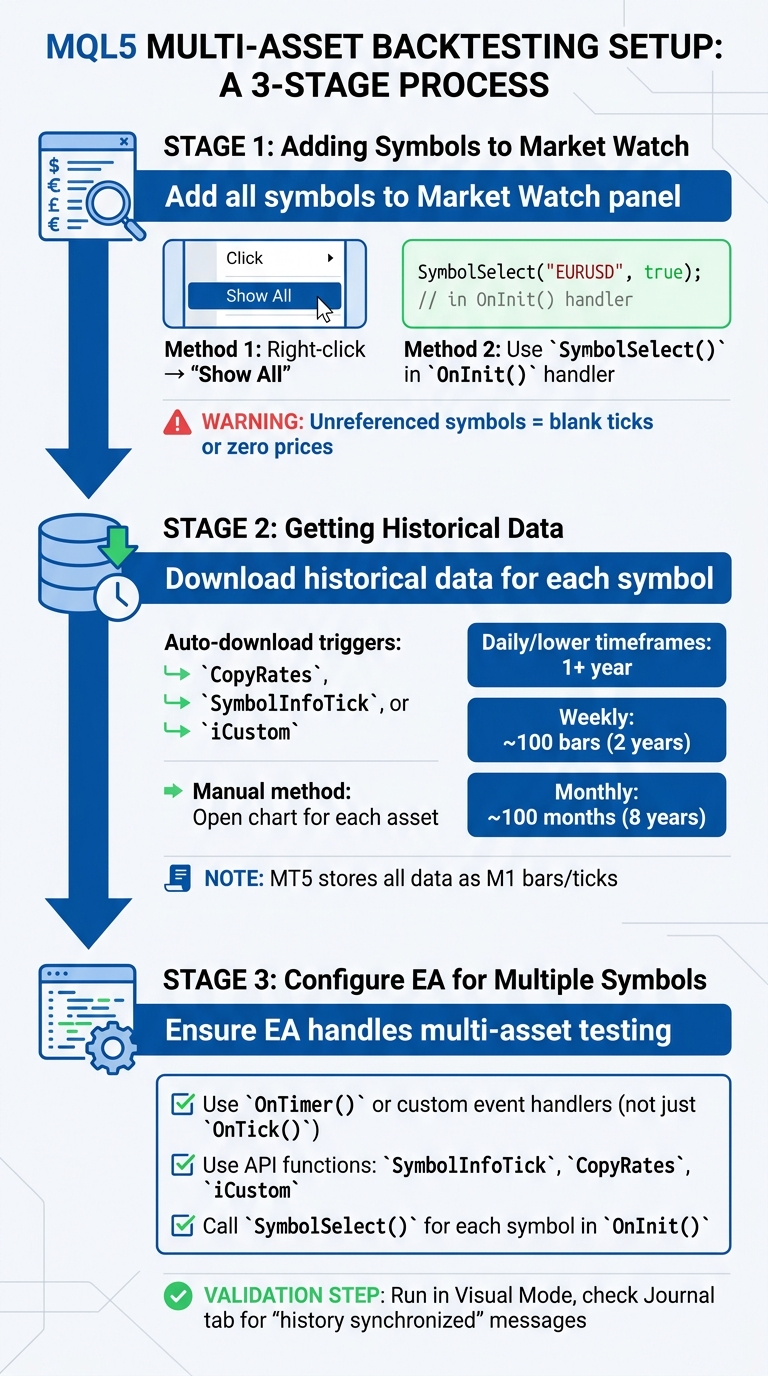
Multi-Asset Backtesting Setup Process in MQL5
Before diving into a multi-asset backtest, there are a few key steps you need to take to set everything up properly.
Adding Symbols to Market Watch
First, make sure all the symbols you want to test are added to the Market Watch panel. By default, MT5’s tester only loads the single symbol selected when you start. To include additional symbols, you’ll need to add them manually or programmatically. The easiest way? Right-click in the Market Watch window and select "Show All". This ensures that tick data for all symbols is loaded.
Want to automate the process? Use the SymbolSelect() function in your EA's OnInit() handler. Keep in mind, any symbols your code doesn’t reference will remain hidden, resulting in blank ticks or zero prices.
Getting Historical Data
Once your symbols are visible, check that MT5 has downloaded enough historical data for each one. MT5 stores all data as M1 (1-minute) bars or ticks, dynamically calculating higher timeframes from this base. If the data isn’t already available, the tester will automatically download it the first time your EA accesses the symbol using functions like CopyRates, SymbolInfoTick, or iCustom.
For a quicker method, manually open a chart for each asset and wait for the progress indicator to finish. Here's what you’ll get:
- Daily and lower timeframes: At least one year of history from the start of the previous calendar year.
- Weekly timeframes: Around 100 bars (roughly two years).
- Monthly timeframes: About 100 months (approximately eight years).
If your strategy relies on a longer warm-up period for indicators, adjust your backtest start date accordingly.
Making Sure Your EA Works with Multiple Symbols
Finally, confirm that your Expert Advisor (EA) is designed to handle multi-asset testing. Since the OnTick() function only triggers on the chart symbol, you’ll need to use OnTimer() or custom event handlers to process data from other symbols. Additionally, your EA should use API functions like SymbolInfoTick, CopyRates, or iCustom to retrieve data for additional symbols. The tester only adds these symbols to its internal Market Watch when they’re accessed.
For extra assurance, call SymbolSelect() for each required symbol during initialization in your EA’s OnInit() function. Then, run your first test in Visual Mode (click the glasses icon) to monitor trades across different charts. Check the "Journal" tab for messages like "history synchronized" or "unknown symbol" to confirm that your EA is correctly accessing all the necessary assets.
Once these steps are complete, you’ll be ready to configure and launch your multi-asset backtest.
How to Run a Multi-Asset Backtest
Once your symbols and Expert Advisor (EA) are ready, the next step is configuring the Strategy Tester to ensure accurate results. Here's how to set it up and run your backtest effectively.
Opening and Configuring Strategy Tester
To get started, open the Strategy Tester by pressing Ctrl+R or navigating to View → Strategy Tester. Select your EA, the primary symbol, and the desired timeframe. You'll need a "host" chart to trigger OnTick() events. In the Symbol dropdown menu, choose "All Symbols Selected in Market Watch" to load tick data for all symbols visible in your Market Watch panel. From there, adjust the test settings to align with your testing goals.
Setting Test Parameters
Fine-tune your parameters to simulate realistic market conditions:
- Date Range: Choose at least one to two years to cover a variety of market scenarios.
- Modeling Mode: Use "Every tick based on real ticks" for the most accurate simulation.
- Deposit and Leverage: Set a realistic starting deposit (e.g., $10,000 USD) and leverage (e.g., 1:30).
- Spread: Opt for "Real Ticks" to reflect historical spread variations or set a fixed spread (e.g., 1.5 pips).
- Custom Delay: Enable this option if you want to simulate broker latency.
"MetaTrader 5's Strategy Tester was originally designed around single-symbol testing. Multi-symbol support exists, but it is gated behind several non-default settings."
Starting the Test
Once everything is configured, click Start to initiate a single backtest. Alternatively, switch to the Optimization tab and enable the "Genetic Algorithm" to explore multiple parameter combinations. Before running the test, confirm your broker's server time zone (e.g., GMT+2) to ensure that any hard-coded trading hours in your EA align with historical data. After setup, the tester will process tick data for all selected symbols, allowing you to analyze multi-asset performance.
Reading Results and Improving Your Strategy
Once your multi-asset backtest is complete, the next step is to analyze the results and refine your trading strategy accordingly.
Checking Performance Numbers
The Results tab provides a breakdown of metrics for all tested symbols. Pay close attention to Equity Drawdown instead of Balance Drawdown - equity drawdown factors in floating losses, giving you a clearer picture of the actual risks your account faced. A large gap between these metrics could indicate a "hold-and-hope" strategy, where losing trades are delayed rather than closed. For a solid strategy, aim for these benchmarks:
- Profit Factor: Above 1.5 (gross profit divided by gross loss)
- Sharpe Ratio: At least 1.0
- Recovery Factor: Above 2.0 (net profit divided by maximum drawdown)
Your strategy should also show results from over 1,000 trades spanning multiple market cycles to rule out random success. Be cautious if the equity curve looks unnaturally smooth - it may signal the use of grid or martingale techniques, which can conceal risk until catastrophic losses occur. Use MFE/MAE (Maximum Favorable Excursion and Maximum Adverse Excursion) analysis to determine whether profits are captured efficiently or if the strategy relies on enduring deep floating losses to hit targets.
Reading the Execution Logs
After reviewing performance metrics, check the execution logs to ensure the backtest ran as expected. The Journal tab confirms whether historical data was properly loaded for all symbols. Look for synchronization entries, such as "USDJPY: history synchronized from [date] to [date]". If you used "Every tick based on real ticks", the logs will indicate where real tick data was available and where the tester had to switch to generated ticks due to gaps in the data. Keep an eye out for warnings about data mismatches, as these occur when tick data conflicts with minute bar parameters, forcing the use of synthetic ticks instead.
"The MetaTrader 5 Strategy Tester was originally designed around single-symbol testing. Multi-symbol support exists, but it is gated behind several non-default settings... The tester gives no warning".
If trades on non-chart symbols failed without explanation, it could mean those symbols weren’t added to Market Watch or their data wasn’t pre-loaded correctly.
Adjusting Your Strategy
Use the insights from your backtest to refine your strategy across all tested symbols. If performance drops significantly when switching from "Open Prices Only" to "Every tick based on real ticks", it suggests the strategy may rely too heavily on precise execution or sub-pip movements. To test its robustness, manually increase the spread and introduce simulated delays in the Strategy Tester settings.
When optimizing, avoid focusing on a single "peak" parameter value. Instead, look for plateaus - ranges of parameters (e.g., Moving Average periods from 14 to 20) that yield similarly positive results. This indicates a strategy that is less likely to be overfitted. For further validation, split your historical data into 70% for optimization (in-sample) and 30% for validation (out-of-sample). If the out-of-sample performance reaches 60-70% of the in-sample results, your strategy is likely more reliable.
Tips for Beginners and Common Mistakes to Avoid
After reviewing your results, consider these practical tips to fine-tune your approach and sidestep common errors.
Picking the Right EA Design
When building a multi-asset Expert Advisor (EA), you have two main options: run separate single-asset EAs in parallel or develop a unified EA to handle all symbols. A unified EA provides better control over overall portfolio risk since it can monitor combined drawdowns across all pairs. Separate EAs, on the other hand, might miss overlapping losses. Another advantage of a unified EA is the ability to loop through symbols using straightforward for loops, applying the same logic with individual parameters. Keep in mind, though, that the OnTick() function triggers only for the chart symbol. For full multi-symbol processing, you'll need to use OnTimer().
Dealing with Data Loading Times
Running multi-symbol backtests can be demanding on your system, requiring 8–16 GB of RAM to avoid slowdowns. If you're using a low-end VPS with just 1–2 GB of memory, you might encounter disk swapping, which could slow your tests by a factor of 10–100. To prevent this, manually open each symbol's chart to ensure all historical data is fully loaded. While the tester automatically downloads at least one year of history for daily and lower timeframes, pre-loading the data ensures there are no gaps that could affect the accuracy of your backtest.
Creating Custom Statistics with OnTester()
For advanced users, evaluating performance goes beyond the standard Strategy Tester report. The OnTester() function allows you to create custom metrics tailored to your strategy. This function returns a double value after each backtest pass, which the optimizer can then use to rank parameter combinations. For example, you could design a custom formula that weighs net profit, maximum drawdown, and trade count to better assess portfolio risk. This method is particularly helpful for evaluating your strategy as a unified portfolio rather than analyzing each pair in isolation.
Conclusion
Multi-asset backtesting in MQL5 requires careful preparation and an accurate market simulation. To start, ensure that all symbols are displayed in Market Watch, load historical data for each currency pair, and use the "Every tick based on real ticks" option for final validation. While this method is slower, it’s essential for capturing real spread fluctuations and cross-pair synchronization.
As Ryo Nakata, the developer of the Nexus Nine EA, aptly states:
"The biggest lie in retail systematic trading is a beautiful equity curve from a misconfigured Strategy Tester."
This highlights the importance of precision in backtesting. Alarmingly, about 97% of traders reportedly use incorrect settings, leading to results that fail to reflect live market conditions.
After running your tests, thoroughly review execution logs and performance metrics. Look for any data gaps or synchronization issues across symbols. To further validate your strategy, factor in realistic slippage and spread assumptions, ensuring it holds up under actual trading costs.
Building a dependable system means going beyond surface-level results. Use out-of-sample data to test your strategy's resilience, acknowledging that what works in one market condition may falter in another. As Mauricio Vellasquez wisely notes:
"Backtesting isn't about finding the perfect strategy. It's about finding strategies robust enough to survive when everything goes wrong."
FAQs
Why isn’t my EA trading the other symbols in a multi-asset test?
If your Expert Advisor (EA) isn’t trading multiple symbols during a multi-asset test in MetaTrader 5, it’s likely due to specific settings required by the Strategy Tester. Here’s how you can address this issue:
- Enable 'Market Watch → Show All': This ensures that tick data for all symbols is loaded and available for testing.
- Check Your EA's Code: Make sure the EA is programmed to reference and handle multiple symbols correctly.
- Adjust Testing Settings: Verify that options like 'Use Date' and 'Model' are configured to support multi-symbol testing.
These steps will help ensure your EA functions as expected in a multi-asset environment.
How do I verify all symbols have complete, synced tick history?
To make sure all symbols have a complete and synchronized tick history in MQL5, start by right-clicking on the Market Watch panel and selecting Show All. This action loads tick data for all available symbols. Next, review the history quality and modeling mode in the Strategy Tester, as these directly influence the accuracy of your data. If you notice any missing or outdated data, update it through the terminal's data center or double-check that your historical files are up to date.
What’s the best way to validate a multi-asset strategy out-of-sample?
To properly validate a multi-asset strategy, you’ll need to split your historical data into two distinct periods: in-sample and out-of-sample. The in-sample data is where you’ll develop and refine your strategy. Once that's done, you’ll test the strategy on the out-of-sample data to check how well it performs on unseen market conditions - this step ensures the strategy isn’t overfitted.
For accurate results, use precise modeling modes such as "Every Tick" in MT5. This helps simulate real market conditions more closely. Also, make sure the data you’re working with is of high quality to avoid misleading outcomes.
Once your strategy shows promising results in these tests, take it one step further. Validate its performance through forward testing or paper trading. This involves running the strategy in real-time market conditions without committing actual capital, giving you a clear idea of how it might perform before live deployment.