MQL5 Integration Testing: Best Practices

MQL5 Integration Testing: Best Practices
Building a trading system in MQL5? Integration testing is your safety net. It ensures your Expert Advisor (EA) works flawlessly within MetaTrader 5 by testing how it handles broker data, executes trades, and syncs across multiple currencies and APIs. Here’s what you need to know:
- Key areas to test: Terminal connectivity, data feed accuracy, order routing, and multi-symbol synchronization.
- Test conditions: Use "Every tick based on real ticks" for accuracy and simulate network delays to replicate trading scenarios.
- Setup tips: Confirm broker time zones, load historical data, and ensure dependencies like 64-bit environments and DLL imports are configured.
- Validation process: Check trade logic, timestamps, and error logs. Use tools like
OrderCheck()to prevent silent failures. - Automated workflows: Save input parameters with
.setfiles and use command-line tools for headless backtesting.
Why it matters: Testing identifies potential failures before live trading. Missteps like relying on incorrect GMT offsets or using insufficient historical data can lead to costly errors. Follow these practices to ensure your trading system performs reliably under real-world conditions.
How To Use The MT5 Strategy Tester For Backtesting (EA Testing Explained)
sbb-itb-3b27815
Defining the Testing Scope and Environment
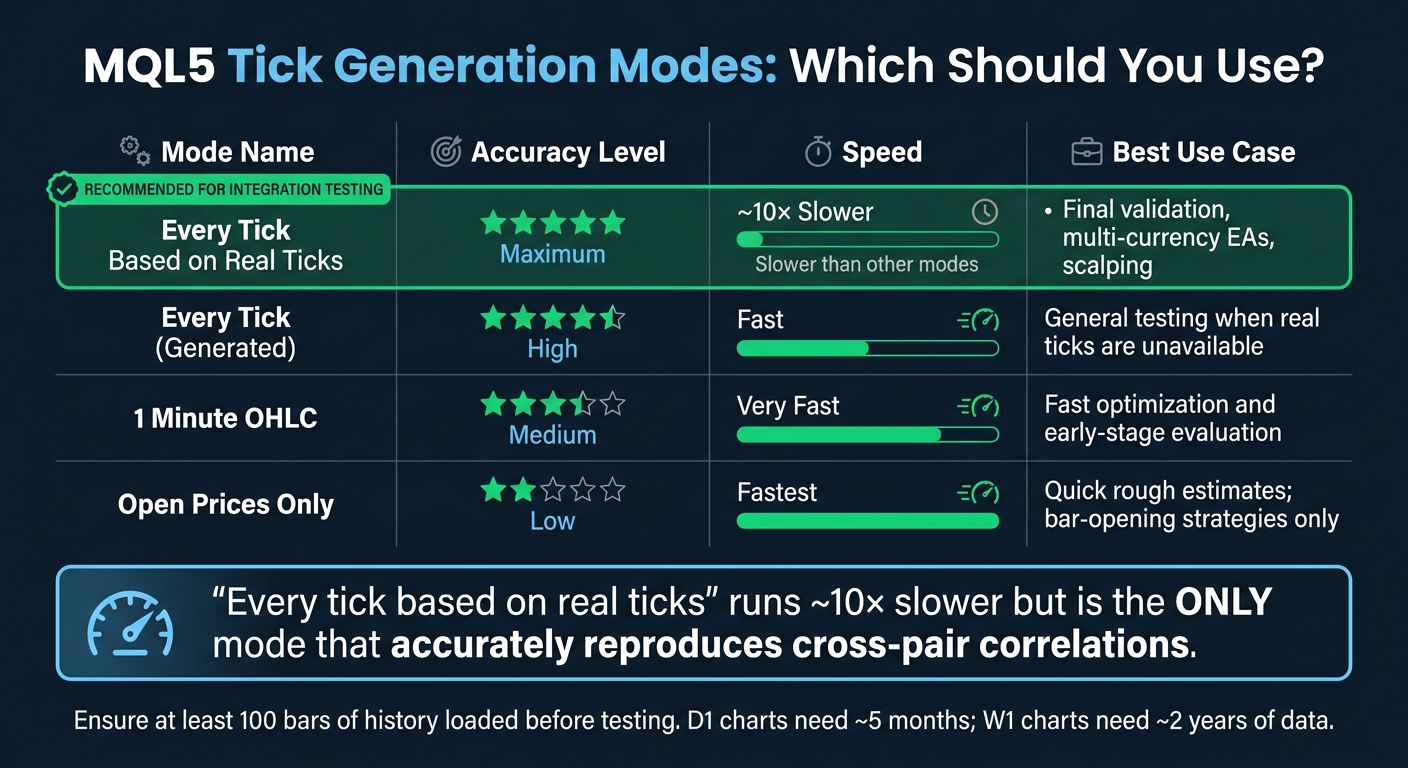
MQL5 Strategy Tester: Tick Generation Modes Compared
For effective integration testing, setting a clear and precise testing scope is critical. It ensures that your tests are reliable and avoids misleading results. By defining the parameters and conditions upfront, you lay the groundwork for successful testing.
Key Integration Points to Test
When performing MQL5 integration tests, focus on these main areas: terminal connectivity, data feed accuracy, order routing behavior, and multi-symbol synchronization.
Start by reviewing the Market Watch panel. If you're working with multi-currency systems, make sure every symbol your EA relies on is visible and active. Right-click the Market Watch panel, select "Show All," and open a chart for each symbol to download the necessary history data.
Order routing is another crucial aspect. MT5 allows you to simulate network latency using two modes: Random Delay (ranging from 0–18 seconds) or a Fixed Delay based on your actual ping to the trade server. In Random Delay mode, there's a 90% chance of a delay between 0–8 seconds and a 10% chance of a longer delay between 9–18 seconds. This variability is especially important for strategies that depend on quick execution.
Additionally, your scope should specify which event handlers need testing. For example, if your EA uses functions like OnTimer, OnTradeTransaction, or OnChartEvent, these integrations require explicit attention beyond the standard OnTick testing.
These key areas will directly shape your environment setup and data requirements.
Environment Setup Requirements
Once you've identified the critical integration points, it's time to configure your test environment to replicate real-world conditions as closely as possible. Pay attention to two primary factors: tick generation mode and historical data depth. For final validations, use the "Every tick based on real ticks" option to ensure accurate cross-pair correlation.
| Tick Generation Mode | Accuracy | Best Use Case |
|---|---|---|
| Every tick based on real ticks | Maximum | Final validation, multi-currency EAs, scalping |
| Every tick (generated) | High | General testing when real ticks are unavailable |
| 1 minute OHLC | Medium | Fast optimization and early-stage evaluation |
| Open prices only | Low | Quick rough estimates; bar-opening strategies |
For final integration testing, "Every tick based on real ticks" is essential. While it runs about 10× slower than other modes, it's the only option that accurately reproduces cross-pair correlations and shared timing windows. In contrast, the "Every tick" mode assumes a single chart context, which doesn't work well for multi-symbol setups.
Historical data depth is another critical factor. Ensure a buffer of at least 100 bars for the selected timeframe before running your tests. For example, D1 charts need about five months of data, while W1 charts require roughly two years. If the history is insufficient, check the log for a "start time changed" message to identify gaps.
Lastly, document your broker's server time zone before starting. Hover over an M1 candle on a live chart and compare its timestamp to UTC. This step is especially important for session-based logic, like entries timed around the London or New York market opens. Hard-coding the wrong GMT offset will lead to incorrect behavior.
Integration Setup and Preconditions
Setting up the platform correctly is crucial to prevent integration test failures. These steps ensure that the testing process accurately mirrors actual trading conditions.
Platform Configuration and Dependency Checks
Before diving into tests, confirm that MetaTrader 5 is installed, running, and logged into a valid broker account. For initial testing, using a demo account is highly recommended. Here’s what to check:
- Algorithmic Trading settings: Navigate to Tools > Options > Expert Advisors and ensure "Algorithmic Trading" is enabled. Also, uncheck "Disable automatic trading via external Python API". If misconfigured, scripts may fail, and
mt5.last_error()could return error code10027. - 64-bit compatibility: Use a 64-bit virtual environment and install required packages like
MetaTrader5,pandas,numpy, andpytz. This avoids DLL initialization errors. - Executable EA files: Confirm that
.mq5source files are compiled into.ex5executables using MetaEditor before testing.
When initializing MetaTrader 5 with mt5.initialize(), explicitly specify the path to metatrader64.exe, especially if multiple terminal instances are installed. Note that the connection timeout defaults to 60,000 milliseconds (60 seconds).
"The terminal must be installed, running, and logged into an account. The Python package then calls into the terminal's API." - The Forex Geek
Once platform setup and dependencies are verified, the next step is to ensure the communication layer is fully operational.
Communication Layer Readiness
The communication layer plays a critical role in synchronizing components for successful integration tests. After mt5.initialize() returns True, run mt5.terminal_info() and mt5.account_info() to confirm the terminal is not only running but also connected to the broker's trade server. Then, test data retrieval with mt5.symbol_info_tick("EURUSD"). If it returns None, the communication layer isn’t ready.
For setups involving external libraries or socket-based bridges like ZeroMQ, enable "Allow DLL imports" in the terminal’s settings. If using a custom bridge, double-check that required ports (e.g., Handshake port 5555) are open and that encryption keys are correctly configured on both ends. After verifying functionality, always close connections cleanly by calling mt5.shutdown() at the end of each script to prevent resource leaks.
Running the Integration Testing Workflow
Now that your platform is set up and the communication layer is functioning, it's time to move on to running your tests in a systematic and repeatable way.
Controlled Test Execution
Start by enabling visual mode in the Strategy Tester. This feature lets you observe your EA in action on historical data, providing a real-time view of how it generates signals, places orders, makes modifications, and closes trades. This is an effective way to quickly spot sequencing errors.
For the most accurate results, choose "Every tick based on real ticks" as your testing mode. This ensures you're using actual broker tick data, which is critical for maintaining cross-currency synchronization. Keep in mind, though, that this mode is significantly slower - about 10 times slower compared to generated tick models - but the precision it offers is crucial for final integration testing.
Before you begin, make sure all symbols are visible and their historical data is fully loaded. Avoid using the "Current" spread setting for historical tests; instead, set a realistic constant spread for worst-case scenarios or stick to real-tick mode to better reflect historical variability.
To simulate realistic network conditions, configure "Random Delay" in the execution settings. This setting introduces a delay of 0–8 seconds for 90% of trades and a 9–18 second delay for the remaining 10%. These delays mimic real-world execution challenges, helping to test your system's resilience. Use the Journal tab in the Strategy Tester to monitor results, including EA messages, errors, and any communication failures.
Once you're confident the system behaves correctly under these controlled conditions, you can move on to assessing its performance through backtesting and forward testing.
Backtesting and Forward Testing
Backtesting evaluates how your EA would have performed using historical data, ensuring the logic and integration align with past market conditions. Forward testing, on the other hand, validates those results on a separate, unseen time period to ensure they weren't just a result of parameter tuning. Together, these methods confirm that your trade logic works consistently across both familiar and unfamiliar market environments. MetaTrader 5 simplifies this process with its built-in "Forward" setting, which reserves a portion of the test period - typically 1/2, 1/3, or 1/4 - for out-of-sample validation.
| Feature | Backtesting | Forward Testing |
|---|---|---|
| Primary Question | Could this have worked in the past? | Is it working right now? |
| Speed | Fast (years of data in minutes) | Slow (requires real-time passage) |
| Sample Size | Large (hundreds of trades) | Small (typically 30–80 trades) |
| Execution | Simulated | Real (includes slippage, latency, spread) |
| Bias Risk | High (look-ahead, overfitting) | Low (future data doesn't exist) |
If you notice a signal divergence of more than 5–10% between backtesting and forward testing, this could indicate look-ahead bias or an issue with a repainting indicator. To avoid false divergences caused by broker server time offsets, normalize all timestamps to UTC when comparing results.
During forward testing, do not change any settings - this includes timeframe, risk parameters, or logic. Adjusting anything mid-test resets your statistical sample, making the results unreliable. Aim for at least 200 trades to achieve a ±5 percentage point confidence interval; fewer than 30 trades won't provide enough data for meaningful conclusions.
Validation and Error Handling
To ensure a seamless integration process, it's crucial to validate every trade and quickly address any failures that arise.
Trade Logic and Data Consistency Checks
Once your tests are up and running, the next step is to confirm that your Expert Advisor (EA) executes trades accurately and at the right moments.
Begin by verifying stop-loss (SL) and take-profit (TP) settings. For forex pairs and other non-exchange instruments, SL/TP orders trigger based on Bid/Ask prices. On the other hand, for exchange-traded instruments, stop orders rely on the "Last" price, while limit orders depend on Bid/Ask prices. Misconfigured SL/TP settings can undermine your risk management approach.
Another common issue is incorrect signal timing. Always use Index 1 - the confirmed, closed candle - for entry logic. Avoid relying on Index 0, as it represents the current, still-forming bar. Using unconfirmed data from Index 0 introduces look-ahead bias, which creates the illusion that your EA can predict mid-bar price movements - something that's impossible in live trading.
"Most EA failures aren't caused by a bad strategy - they're caused by a specific, identifiable set of coding errors that appear in EA after EA." - StratForge
If your EA operates across multiple symbols, make sure all required symbols are pre-loaded in Market Watch before testing. Failing to do so can lead to issues like SymbolInfoDouble() returning zero or outdated prices, which can disrupt your logic. Additionally, use OrderCheck() before each OrderSend() call to validate factors like margin, lot sizes, and spread conditions. This step helps prevent silent execution failures.
Once you've confirmed trade logic, turn your attention to diagnosing and resolving integration failures.
Handling Common Integration Failures
When running tests, failures can manifest as incorrect trades, unclear log messages, or even halted processes. Here's a breakdown of common failure types, their indicators, and typical causes:
| Failure Category | Common Codes/Indicators | Primary Cause |
|---|---|---|
| Trade Server Rejection | TRADE_RETCODE_INVALID_STOPS, TRADE_RETCODE_NO_MONEY, TRADE_RETCODE_MARKET_CLOSED | Errors in request parameters or account restrictions |
| Runtime Error | Zero division, out-of-range array access, bad object pointers | Programming issues like dividing by zero or accessing invalid array elements |
| Tester Mode Mismatch | OHLC M1, Open Prices Only | Simplified tick generation that doesn't reflect real execution behavior |
| Execution Variability | Requotes, Slippage | Broker-side delays or spread widening not accounted for in backtests |
To capture accurate error codes, always call ResetLastError() before and GetLastError() after critical operations.
Tester mode mismatches also demand careful attention. If your EA requires tick-level accuracy but is running in "Open prices only" mode, it will produce misleading results. You can detect this programmatically by checking if CopyTicks returns ERR_NOT_ENOUGH_MEMORY (indicating emulated ticks) or ERR_FUNCTION_NOT_ALLOWED (indicating an incompatible mode). If you identify such a mismatch, terminate the test early to avoid wasting time on unreliable data.
Logging, Debugging, and Reviewing Test Results
Once you've detected errors and validated trades, the next step is diving into logs and debugging outputs to fine-tune your strategy.
Inspecting Logs and Debug Outputs
The Strategy Tester Journal is your go-to resource after every test run. It logs everything from price history synchronization and agent connection status to EA-specific messages and environment initialization. To catch subtle issues, effective log analysis is key. Look out for entries like MemoryException, Array out of range, Zero divide, and OnInit failed - here’s a quick guide to what they mean and how to address them:
| Error/Message | Meaning | Recommended Action |
|---|---|---|
MemoryException |
Block of memory is unavailable | Reduce array sizes or optimize ArrayResize calls |
Array out of range |
Index exceeds array size | Check loop boundaries and array initialization |
Zero divide |
Division by zero in code | Add a check to ensure the divisor isn’t zero |
OnInit failed |
OnInit returned a non-zero code |
Review input parameters and environment preconditions |
History synchronized |
Data download complete | Verify the start date and symbol availability |
For additional clarity, use the Print() function to log JSON payloads and capture both the response code and body from WebRequest. This can help you quickly confirm if your data bridge is functioning as expected.
To keep your live EA performance unaffected, leverage _DEBUG and _RELEASE macros for verbose testing logs. For interactive troubleshooting, the MetaEditor debugger is invaluable - use breakpoints (F9) and step-through options (F5/Ctrl+F5) to analyze your code in real-time.
Isolating Issues Between Components
Once you've reviewed the logs, the next challenge is pinpointing the exact source of the error. Debugging MQL5 integrations can be tricky, as issues may stem from various components. For example, a missed trade could be due to a flaw in your strategy logic, a broker data discrepancy, or a communication failure - each requiring a different solution.
To adapt your EA’s behavior based on the runtime environment, use MQLInfoInteger with flags such as MQL_TESTER, MQL_DEBUG, and MQL_VISUAL_MODE. For instance, in tester mode, you might skip external web requests and load data from a local file instead. Another helpful tool is the Call Stack window in MetaEditor, which shows the sequence of function calls leading to a crash. This helps you determine whether the problem lies in your core logic or a nested utility function.
For performance issues that don’t produce explicit errors, switch from debugging to profiling. MetaEditor’s profiling tool breaks down execution times by line and function, helping you identify whether the problem is a logic bug or just a performance bottleneck. Keep in mind, though, that MQL_DEBUG and MQL_PROFILER can’t run simultaneously, so use them one after the other.
Automating Tests and Managing Regression Control
Building Repeatable Test Workflows
Once you've established controlled test execution, automating your tests becomes key to maintaining consistent validation and regression control. One of the simplest ways to make integration tests repeatable is by treating configuration as code. MetaTrader 5's Strategy Tester supports this by allowing you to save and load input parameter sets using .set files. This ensures every test run uses the same inputs, avoiding manual errors or unintended changes between runs. Pair this with a tester.ini configuration file, and you can execute fully headless backtests from the command line with terminal64.exe /config:tester.ini, eliminating the need for any UI interaction.
For teams that push frequent updates, an efficient workflow involves compiling the source code, deploying the .ex5 file, and running basic regression tests. This helps catch runtime errors that may have slipped through compilation but could cause failures during execution. The mcp-mt5 project (v0.4.1) simplifies this process by automating the build pipeline, combining tools to compile, deploy, and perform regression checks.
To simulate real-world conditions, enable the "Random Delay" mode. This feature mimics broker latency, ensuring your integration can handle execution delays effectively. For additional validation, use the OnTester() event handler to define custom metrics - like drawdown limits - so the tester can automatically flag any test that fails to meet your criteria.
Keeping Tests Reliable After Platform Updates
Once your workflows are repeatable, the next step is making sure they remain reliable despite platform or broker updates. Changes like a new spread, margin model adjustments, or server time zone shifts can silently compromise your results. To counter this, lock your testing environment by using custom symbol settings in the tester. This allows you to hardcode spreads, contract sizes, and margin requirements, ensuring that broker-side changes don't interfere with your baseline.
It's also important to document and verify your broker's server time offset before each regression run. This precaution helps prevent session-based errors that could disrupt your tests.
"The biggest lie in retail systematic trading is a beautiful equity curve from a misconfigured Strategy Tester. Backtest correctly." - Ryo Nakata, EA Developer
Finally, set regression thresholds in your automated reports. For example, flag any result where the net profit drops by more than 5% compared to the baseline run. MetaTrader 5's built-in forward testing feature can further enhance this process by splitting data into in-sample and out-of-sample periods. This helps you quickly identify whether performance drops after an update signify a true regression or are simply normal variations.
Using Traidies for MQL5 Integration Testing

Integrating automated code generation into your testing workflow can streamline the process of validating and refining your strategies, especially when working with MQL5. Writing and validating MQL5 code can be a time-consuming hurdle, but Traidies simplifies this by combining AI-driven code generation with automated backtesting. This approach minimizes setup time and speeds up validation, aligning perfectly with the automated testing workflows discussed earlier.
One standout feature is the AI Strategy Parser, which transforms plain English strategy descriptions into production-ready MQL5 code. This code includes built-in state persistence and order context validation, addressing common issues such as silent failures during terminal restarts or VPS reboots. These challenges often compromise the reliability of Expert Advisors (EAs).
Traidies also takes care of backtesting automatically, removing the need for manual setup and ensuring that tests comply with real-tick data requirements. This is especially useful for multi-symbol strategies, where tick history for non-charted symbols isn’t loaded by default. Without this, emulated ticks may lead to misleadingly profitable backtest results that fail in live trading.
To illustrate the importance of robust testing, consider this insight:
"A trader looking at a single equity curve has no way of knowing whether the strategy is genuinely robust or just got lucky with the sequence." - Duy Van Nguy, EA Developer
For teams with established regression pipelines, Traidies integrates seamlessly as an initial layer for code generation and validation. It complements manual regression controls like headless backtests via command-line tools and .set file configurations, which were discussed earlier. By using Traidies, you can create reliable EAs and feed them directly into your automated pipeline for further regression testing and forward analysis.
Conclusion
Rigorous integration testing forms the backbone of reliable trading systems. Without thorough testing, even the most promising strategies can falter when exposed to live market conditions. A poorly configured Strategy Tester often leads to results that crumble in real-world trading.
This guide has outlined key practices to strengthen your testing process. From choosing the correct tick modeling mode and aligning multi-symbol data to stress testing with realistic costs and validating strategies using out-of-sample data, these steps are designed to identify weaknesses before putting real money at stake. Metrics like a Profit Factor above 1.5, a Sharpe Ratio above 1.0, and 99% modeling quality serve as benchmarks for creating systems that can withstand market pressures.
The disconnect between backtest results and live performance often boils down to testing errors. By maintaining strict control over your testing environment, data, and validation processes, you can minimize this gap. Implementing these practices consistently will help you create a trading system that performs reliably in live markets.
FAQs
How can I confirm my EA is multi-symbol synchronized in MT5?
To ensure your Expert Advisor (EA) in MT5 is properly synchronized across multiple symbols, you need to verify that the opening times of the last bars for all the symbols involved are identical. A reliable way to do this is by using the iTime() function, which allows you to compare the opening times of the last bars for each symbol.
If you're looking for additional tools or methods, consider using options like MultiSymbolMonitor or the isReady() method. These can help confirm that all symbols' latest bars are aligned, ensuring your EA executes trading logic with accurate synchronization.
What’s the quickest way to catch silent OrderSend failures?
The fastest way to spot silent OrderSend failures is to inspect the retcode field within the MqlTradeResult structure right after executing OrderSend. Use this value to implement error handling, helping you pinpoint and resolve problems efficiently.
How can I run repeatable, headless MT5 tests in CI?
To streamline headless MT5 tests in a continuous integration (CI) environment, automation is key. Use MetaTrader 5's built-in features to perform headless testing, leveraging remote agents or cloud networks for efficient processing.
Pair these tools with dedicated backtesting software and CI frameworks to handle batch testing across various strategies, symbols, and timeframes. Automation scripts can take care of tasks like compiling Expert Advisors (EAs), configuring test parameters, and parsing results. This ensures your CI pipelines remain consistent and scalable, even as testing demands grow.