Setting Stop-Loss and Take-Profit in MQL5

Setting Stop-Loss and Take-Profit in MQL5
Stop-Loss (SL) and Take-Profit (TP) are essential tools for managing trading risks and locking in profits in MetaTrader 5 (MT5). SL automatically closes a trade to limit losses, while TP closes it once a profit target is reached. Automating these functions in MQL5 eliminates emotional decision-making and ensures consistent execution.
Key highlights:
- SL/TP in MT5: Stored on the broker's server, ensuring execution even if disconnected.
- Account Types: Netting accounts use the symbol name for positions, while hedging accounts require unique ticket numbers.
- Automation Benefits: Use technical indicators, dynamic levels, or trailing stops to optimize SL/TP placement.
- Code Structures: MQL5 uses
MqlTradeRequestandCTradefor setting SL/TP with precision. - Validation: Normalize prices with
NormalizeDouble()and check broker rules like minimum distance (SYMBOL_TRADE_STOPS_LEVEL).
34. How to Modify Stop Loss and Take Profit for Open Positions in MQL5

sbb-itb-3b27815
Core MQL5 Concepts for Setting SL/TP
Understanding the basics of MQL5 trade structures is crucial for managing orders effectively, especially when implementing automated stop-loss (SL) and take-profit (TP) systems.
Key Trading Structures and Enums
In MQL5, trade execution revolves around two main structures: MqlTradeRequest and MqlTradeResult.
MqlTradeRequest: This structure is where you define the trade details, such as the symbol, volume, price, and the all-importantslandtpfor stop-loss and take-profit levels.MqlTradeResult: This structure captures the server's response, including return codes and order tickets.
The action field within MqlTradeRequest is set using ENUM_TRADE_REQUEST_ACTIONS, which specifies the operation type:
| Enum Value | Purpose |
|---|---|
TRADE_ACTION_DEAL |
Opens a new market order with SL/TP. |
TRADE_ACTION_SLTP |
Modifies SL/TP on an open position. |
TRADE_ACTION_PENDING |
Places a pending order with SL/TP. |
To avoid errors, always initialize MqlTradeRequest with ZeroMemory() or use MqlTradeRequest request = {}. Failing to do so can lead to unexpected values in unused fields, causing order rejections.
Price Normalization and Validation
When performing price calculations in MQL5, raw values often include more decimal places than a broker allows. The NormalizeDouble() function adjusts these values to match the symbol's precision, which is determined by SYMBOL_DIGITS. For example:
- EURUSD: Uses 5 decimal places.
- USDJPY: Uses 3 decimal places.
This step ensures SL/TP levels align with the broker's requirements.
Another critical aspect is validating that SL/TP levels comply with the broker's minimum distance from the current market price, known as SYMBOL_TRADE_STOPS_LEVEL. This distance, measured in points, prevents SL/TP levels from being set too close to the market price. Violating this rule triggers the [Invalid stops] error. As highlighted in the MQL5 Cookbook:
"Questions from beginners regarding errors arising when setting/modifying trade levels (Stop Loss, Take Profit and pending orders) are far from being rare... I believe many of you must already be familiar with the journal message ending with [Invalid stops]."
To avoid this error:
- Add a buffer of 1–2 points to the minimum distance calculated from
SYMBOL_TRADE_STOPS_LEVEL. This accounts for slight price changes during request transmission. - Ensure directional logic is correct: for Buy orders, SL must be below the entry price and TP above it; for Sell orders, the reverse applies.
Trade Helper Classes in MQL5
After normalizing and validating SL/TP levels, using trade helper classes can simplify the process of executing orders. The CTrade class from the MQL5 Standard Library is particularly helpful. It wraps the raw MqlTradeRequest structure and provides user-friendly methods like Buy(), Sell(), and PositionModify().
Additionally, the CSymbolInfo class offers quick access to symbol-specific data, such as tick size, SYMBOL_TRADE_STOPS_LEVEL, and SYMBOL_DIGITS. Combining these classes helps streamline your code and reduces the risk of missing critical validation steps.
When updating an existing position's SL/TP using CTrade::PositionModify, always include the current TP value, even if you're only adjusting the SL. Omitting the TP value can unintentionally reset it to zero.
Placing Stop-Loss and Take-Profit with Market Orders
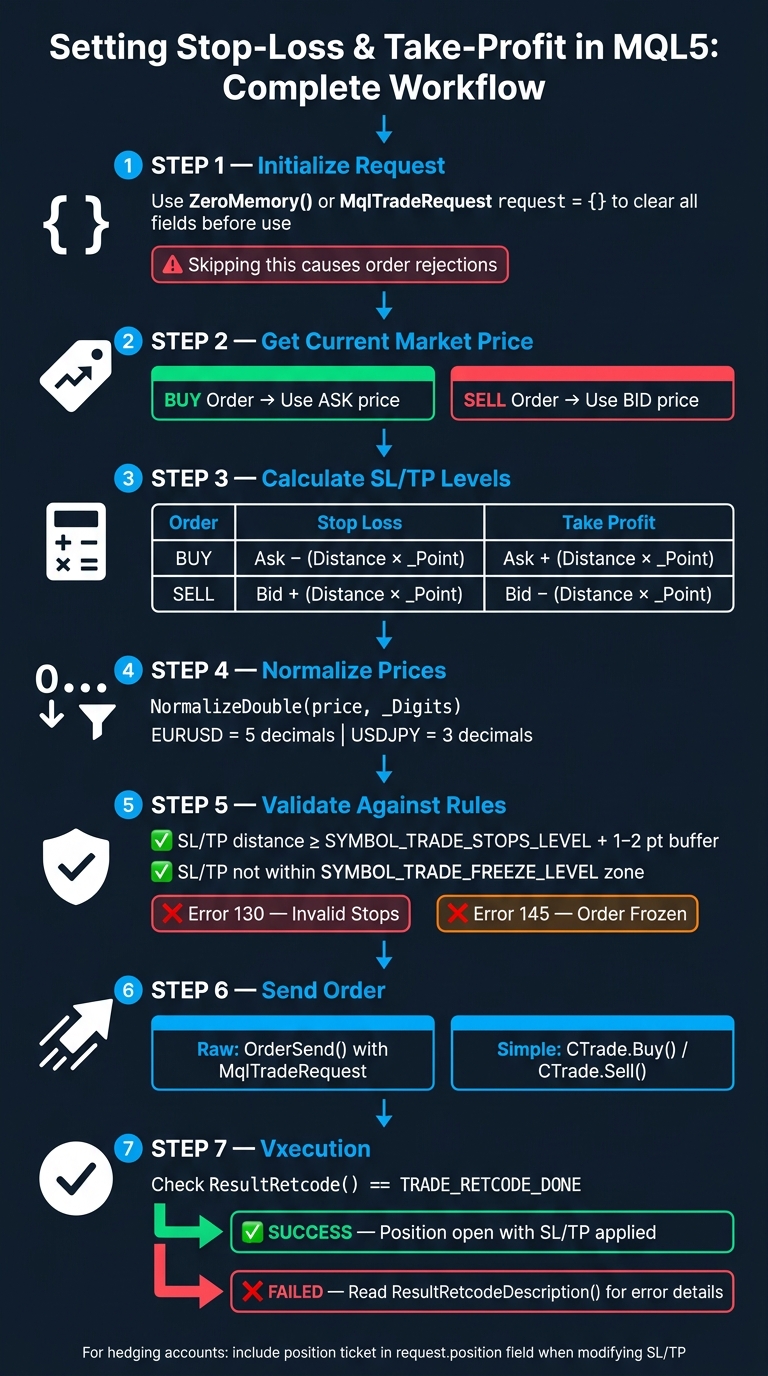
MQL5 Stop-Loss & Take-Profit Setup: Step-by-Step Workflow
This section dives into how to set Stop-Loss (SL) and Take-Profit (TP) levels when placing market orders in MQL5.
Setting SL/TP Using MqlTradeRequest
To place SL/TP levels, you’ll need to use MqlTradeRequest. Start by setting the action field to TRADE_ACTION_DEAL for a market order, then define the sl and tp fields with absolute price levels. For Buy orders, calculate these levels using the Ask price, and for Sell orders, use the Bid price:
| Order Type | Entry Price | Stop Loss | Take Profit |
|---|---|---|---|
| Buy | Ask | Ask - (Distance * _Point) |
Ask + (Distance * _Point) |
| Sell | Bid | Bid + (Distance * _Point) |
Bid - (Distance * _Point) |
Some brokers operating in Market or Exchange Execution modes require you to open the position first, then apply SL/TP levels using a TRADE_ACTION_SLTP request. To keep track of trades, assign a unique magic number for each one.
After sending the trade request with OrderSend(), a return value of true confirms it was sent successfully. However, always verify execution by checking MqlTradeResult.retcode. If it equals TRADE_RETCODE_DONE, the order has been executed as intended.
For a simpler approach, consider using the CTrade class.
Using the CTrade Class for SL/TP
The CTrade class, part of the MQL5 Standard Library, makes it easier to handle SL/TP settings. Once you've normalized and validated the price levels, you can open trades with SL/TP in a single line of code. Here's an example:
#include <Trade\Trade.mqh>
CTrade trade;

// In OnInit or similar setup:
trade.SetExpertMagicNumber(12345);
trade.SetDeviationInPoints(10);

// Opening a Buy with SL/TP:
double ask = SymbolInfoDouble(_Symbol, SYMBOL_ASK);
double sl  = NormalizeDouble(ask - 500 * _Point, _Digits);
double tp  = NormalizeDouble(ask + 1000 * _Point, _Digits);
trade.Buy(0.1, _Symbol, ask, sl, tp);
Once you configure SetExpertMagicNumber() and SetDeviationInPoints(), these settings apply to all subsequent Buy() or Sell() calls.
After placing a trade with trade.Buy() or trade.Sell(), verify success by checking if trade.ResultRetcode() equals TRADE_RETCODE_DONE. If the trade fails, trade.ResultRetcodeDescription() will provide a clear explanation of the error.
Adjusting SL/TP for Different Account Types
Different account types may require slight adjustments when setting SL/TP:
- Netting Accounts: Use the symbol name for identifying positions.
- Hedging Accounts: Specify a unique position ticket in the
request.positionfield when modifying SL/TP.
For accounts with floating spreads, add a safety buffer - around 50 points above the SYMBOL_TRADE_STOPS_LEVEL - to handle spread fluctuations during volatile market conditions, such as news releases or low liquidity periods.
Modifying and Managing Existing SL/TP
Accessing and Modifying Open Positions
Before recalculating stop loss (SL) and take profit (TP) levels, you need to ensure you're working with the most up-to-date data. Use PositionSelect() or PositionSelectByTicket() to select the current position. Skipping this step could lead to errors caused by outdated information.
The CTrade class makes this process easier with its PositionModify() method. Here's an example:
#include <Trade\Trade.mqh>
CTrade trade;

ulong ticket = 123456789; // Position ticket
double newSL = NormalizeDouble(PositionGetDouble(POSITION_PRICE_OPEN) - 300 * _Point, _Digits);
double newTP = NormalizeDouble(PositionGetDouble(POSITION_PRICE_OPEN) + 600 * _Point, _Digits);

if(PositionSelectByTicket(ticket))
   trade.PositionModify(ticket, newSL, newTP);
If you want to remove a protective level entirely, you can set the sl or tp value to 0. Once canceled, the broker will ensure the level stays removed, even if your terminal disconnects.
After making changes to your positions, always verify that the updates comply with your broker's rules and constraints.
Runtime Validation for SL/TP Changes
When modifying SL/TP levels, it's critical to validate them against broker-imposed constraints. Two key restrictions could block your requests: StopLevel and FreezeLevel.
| Constraint | Purpose | Error Code |
|---|---|---|
SYMBOL_TRADE_STOPS_LEVEL |
Ensures SL/TP is a minimum distance (in points) from the current price | Error 130 - Invalid Stops |
SYMBOL_TRADE_FREEZE_LEVEL |
Prevents modifications within a "frozen" zone around the current price | Error 145 - Order Frozen |
Always retrieve these values immediately before sending a modification request. This is especially important during volatile periods, such as news events or low-liquidity sessions, when brokers may adjust these levels dynamically. Once you've sent your request, check the result using trade.ResultRetcode(). If the response is TRADE_RETCODE_PLACED (indicating the request was accepted but not yet executed), use a polling loop with PositionSelectByTicket() to confirm the update on the server.
Handling Complex Scenarios
Some scenarios require extra care to ensure SL/TP levels are managed effectively and consistently:
-
Partial Closures: If you use
CTrade::PositionClosePartial()to close part of a position, the remaining portion will keep the original SL/TP settings. Double-check that the remaining volume meets broker requirements and that SL/TP levels remain valid after the adjustment. - Position Reversals in Netting Accounts: Reversing a position (e.g., closing a 1.0 lot Buy with a 2.0 lot Sell) results in a new ticket number for the short position. Any SL/TP logic tied to the old ticket will no longer apply. Ensure your expert advisor detects the new ticket and reapplies the necessary SL/TP levels.
- Trailing Stops: When implementing trailing stops, only send a modification request if the new SL improves the current one. For example, in a Buy position, the new SL should be higher than the current SL. This approach avoids unnecessary requests.
Designing Automated SL/TP Logic
When moving beyond basic stop-loss (SL) and take-profit (TP) setups, more advanced strategies can adjust these levels to align with market behavior and risk management principles.
Defining SL/TP Based on Risk Units
A practical way to set SL/TP levels is to base them on a fixed dollar risk rather than an arbitrary point value. Start by using AccountInfoDouble(ACCOUNT_BALANCE) to check your account balance, then decide on an acceptable percentage to risk per trade - typically 1% to 2%. Calculate the appropriate lot size by dividing your risk amount by the product of your SL distance (in points) and SymbolInfoDouble(Symbol(), SYMBOL_TRADE_TICK_VALUE). This approach ensures consistent and disciplined risk management.
Before placing the trade, use OrderCalcProfit() to estimate the potential profit or loss in your account currency. This step helps verify your calculations without executing the trade. If the numbers seem off, adjust either the lot size or the SL distance before proceeding.
Dynamic SL/TP Placement Methods
Static SL/TP levels often fall short in volatile markets. Here are three adaptable methods that respond to price movements:
- ATR-based stops: For long positions, calculate the SL as
CurrentPrice - (iATR(...) * Multiplier). A multiplier of 2.0 is a common starting point. This method provides enough flexibility to handle regular market fluctuations while limiting losses. - Price action levels: Use
iHighestandiLowestto identify recent swing highs and lows, then place your SL just beyond these levels. This strategy aligns with how many traders set invalidation levels. - Indicator-based trailing: Tie the SL to a moving average or Parabolic SAR value. Check after each bar to see if the indicator has moved favorably, and update the SL if the improvement exceeds a minimum trailing step (e.g., 10 points). This reduces unnecessary server requests.
No matter which method you choose, always validate the SL/TP levels against SYMBOL_TRADE_STOPS_LEVEL. If the broker reports 0 for this value, treat it as a floating stop level and add a buffer of 2x to 3x the current spread for extra safety. These methods create a solid foundation for integrating automation tools.
Using AI Tools Like Traidies to Automate SL/TP

Creating dynamic SL/TP logic manually can be a complex and time-consuming task. From managing indicator handles and buffer copying to dealing with account type differences and error codes, the process can quickly become overwhelming. Tools like Traidies simplify this by converting plain-language strategies into MQL5 code.
For instance, instead of manually coding ATR calculations or NormalizeDouble() adjustments, you can input something like: "Set stop-loss at 2x ATR below entry for long trades, move take-profit to break-even after 20 pips of profit." The platform generates fully functional code based on your instructions.
Once the code is ready, you can backtest it directly within the platform using historical data to ensure the SL/TP rules perform as expected before going live. This eliminates the need for separate testing setups, streamlining the entire workflow.
Conclusion
To put the strategies discussed into action, implementing price normalization, broker validation, and account type awareness is crucial for avoiding common errors like "Invalid Stops" when working with SL/TP in MQL5.
Dynamic methods, such as ATR-based stops or indicator-driven trailing logic, allow SL/TP levels to adjust with market conditions. Maintaining a risk-reward ratio of at least 1:2 supports disciplined trading, while these adaptive approaches help manage market volatility effectively.
For those looking to streamline these advanced techniques, Traidies provides a practical solution. Instead of manually coding SL/TP logic, you can describe your strategy in plain language, generate functional MQL5 code instantly, and backtest it using historical data - all in one convenient platform.
FAQs
Why do I get “Invalid stops” when setting SL/TP in MQL5?
The "Invalid Stops" error pops up when your Stop Loss or Take Profit levels don't align with your broker's rules. Here's what might be going wrong:
- Setting levels too close to the market price: Brokers often have a minimum distance requirement that your Stop Loss or Take Profit levels must respect.
- Ignoring the symbol's tick size: If prices aren't rounded to match the symbol's tick size, your trade might get rejected.
- Placing stops incorrectly: For example, setting a Stop Loss for a Buy order above the entry price will trigger an error.
To avoid this, double-check your levels, ensure they follow the broker's guidelines, and round them to the appropriate tick size before placing your trade.
Should I set SL/TP when opening a trade or modify it afterward?
When working with MQL5, you have the option to define Stop Loss (SL) and Take Profit (TP) levels at the time of opening a trade or adjust them later. Setting these levels right away offers instant protection for your trade, while modifying them afterward gives you the flexibility to implement strategies like trailing stops.
Important: Make sure to validate the SL and TP levels against your broker's restrictions, such as the SYMBOL_TRADE_STOPS_LEVEL parameter, to ensure they meet the required conditions.
How do I calculate an SL/TP that risks a fixed $ amount per trade?
To manage risk by wagering a fixed dollar amount per trade, you’ll need to convert that amount into an appropriate lot size based on your stop-loss distance. In MQL5, you can calculate it like this:
LotSize = (RiskAmountUSD) / (StopLossPoints * PointValue)
Here’s how it works step by step:
- Use
SYMBOL_TRADE_TICK_VALUEto determine the PointValue for the instrument you're trading. - Adjust the calculated lot size to align with the instrument's specifications, ensuring it meets the
SYMBOL_VOLUME_STEP, as well as theSYMBOL_VOLUME_MINandSYMBOL_VOLUME_MAXlimits.
When placing your trade, set your stop-loss (SL) and take-profit (TP) levels using request.sl and request.tp. If you’re only using a stop-loss, set tp=0.0 in your trade request. This ensures your trade parameters are accurately configured.